Overview
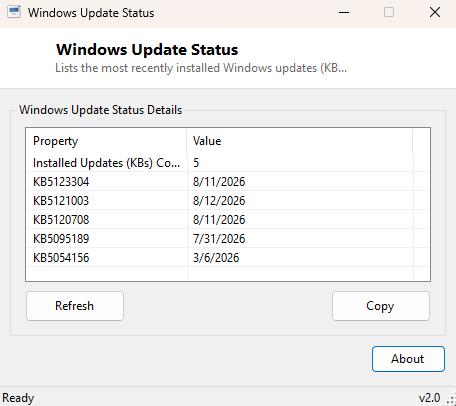
Windows Update Status gives you a fast, sortable list of the KB (Knowledge Base) update packages actually installed on a machine, with their install dates, without navigating through Settings → Windows Update → Update History and waiting for that page to render. It reads the same installed-update inventory Windows itself tracks internally and presents the fifteen most recent entries sorted with the newest first, alongside a total count of every update package currently recorded on the system.
This is a read-only reporting tool — it does not check for new updates, download anything, or interact with Windows Update servers in any way. It simply reads the local record of what has already been installed.
Key Features
- Shows the total count of installed update (KB) packages on the system
- Lists the fifteen most recently installed updates, sorted newest first
- Displays each update's KB number alongside its install date
- One-click Copy button to paste the full list as text
- No network activity — reads only local update history
- Instant startup, no installation, fully portable
Why You Might Need This Tool
This tool is most useful right after Patch Tuesday, when you want a quick confirmation that a specific security update has actually landed on a machine without digging through the Settings app. It is equally handy when troubleshooting a problem that started after a recent update — seeing the most recent KB numbers and their install dates side by side makes it easy to correlate a new issue with a specific patch, which is often the first thing a support technician or an online troubleshooting thread will ask for. IT staff supporting several machines also use it as a fast way to confirm patch parity across a small fleet without remote desktop access to each one's full Settings app.
Software vendors also increasingly document minimum-patch-level requirements for their applications, particularly for security-sensitive tools that depend on a specific cryptographic or scheduling fix shipped in a recent cumulative update. Being able to answer "is KB5034441 (or whichever KB the vendor named) installed" in a few seconds, without opening a heavyweight Settings page, turns what is normally a multi-click detour into a genuinely quick lookup.
How It Works
The tool queries the Win32_QuickFixEngineering WMI class, which is the
same class Windows populates as it tracks installed hotfixes and cumulative update
packages. Every returned entry is collected into a list, the total count is reported
first, and the list is then sorted in descending order by HotFixID (the
KB number string) before the fifteen most recent entries are displayed alongside their
InstalledOn date. Note that Win32_QuickFixEngineering is a
long-standing but somewhat legacy WMI class — on some systems it may not capture every
single cumulative update the way the newer Windows Update history log does, so this
tool is best treated as a fast, convenient overview rather than an exhaustive audit
trail.
How to Use It
Launch the tool and the update list populates immediately. Use Copy to paste the full list into a support ticket, or simply scan the top entries to confirm the most recent patch date. Use Refresh after installing new updates and rebooting to see the freshly updated list.
System Requirements & Notes
Runs on 64-bit Windows 10 and Windows 11 and requires no administrator privileges — reading the installed-update inventory through WMI is available to any standard user account. This tool cannot install, hide, or roll back updates; for those actions use Windows Update settings or Windows Update for Business/WSUS tooling in a managed environment.
Frequently Asked Questions
Does this tool check for or install new updates?
No — it is strictly a read-only local history viewer and never contacts Microsoft's
update servers.
Why doesn't a specific update I know was installed appear in the list?
Win32_QuickFixEngineering does not always capture every cumulative
update the newer Windows Update history mechanism tracks; for a completely exhaustive
list, check Settings → Windows Update → Update History directly.
Can I see more than the 15 most recent updates?
The tool intentionally caps the display at 15 to keep the window compact and the
information you actually need — the most recent patches — immediately visible; the
total-count figure still reflects every update on record.
How is the install date recorded — is it accurate?
The InstalledOn field comes straight from the same Windows Update
servicing stack that manages patch installation, so it reflects the date the fix was
actually applied on this machine rather than the date it was published by Microsoft.
For updates applied through certain offline or imaging processes this field can
occasionally be blank, in which case the tool shows "N/A" for that entry rather than
guessing.