Overview
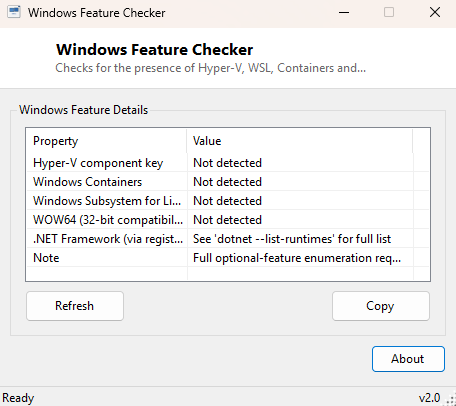
Windows ships with a long list of optional components — Hyper-V, Windows Subsystem
for Linux, Windows Containers, the WOW64 32-bit compatibility layer — that are not
always obviously "on" or "off" from the desktop. The full, authoritative answer
normally requires an elevated PowerShell session and the
Get-WindowsOptionalFeature cmdlet, or a trip through the "Turn Windows
features on or off" control panel. Windows Feature Checker gives you a fast,
non-elevated first look at a handful of the most commonly asked-about components,
without needing to open an administrator PowerShell prompt just to check.
This tool is deliberately scoped as a quick registry-presence check rather than a full DISM-level feature enumeration — it tells you honestly what it can determine without elevation, and where a complete answer genuinely requires administrator rights and DISM/PowerShell, it says so directly rather than pretending to a completeness it cannot deliver.
Key Features
- Checks for the Hyper-V component registry key
- Checks for Windows Containers support
- Checks for Windows Subsystem for Linux (WSL) presence
- Checks for the WOW64 32-bit compatibility layer
- Points you to the correct follow-up command for a complete, authoritative feature list
- Runs entirely without administrator rights
Why You Might Need This Tool
This is a useful first stop before attempting to install software that depends on one of these components — Docker Desktop needing WSL2 or Hyper-V, a development environment requiring the Windows Containers feature, or older 32-bit software relying on WOW64 being present. Rather than launching the relevant installer and discovering a missing-prerequisite error partway through setup, a thirty-second check here tells you up front whether the underlying registry evidence for that feature already exists on this machine, so you know what to expect before you commit to a longer installation process.
How It Works
The tool checks for the presence of four specific registry keys under
HKEY_LOCAL_MACHINE: SOFTWARE\Microsoft\Windows NT\CurrentVersion\Hyper-V,
SOFTWARE\Microsoft\Windows\CurrentVersion\Containers,
SOFTWARE\Microsoft\Windows Subsystem for Linux, and
SOFTWARE\Microsoft\Windows NT\CurrentVersion\WOW64. Each key's mere
presence is treated as evidence that the corresponding component has been enabled at
some point on this system — this is a lighter-weight signal than a full DISM feature
state query, which is why the tool is explicit that it is checking registry evidence
rather than definitively confirming a feature is actively enabled right now. The tool
also displays a note directing you to dotnet --list-runtimes for a full
.NET runtime inventory and reminds you that a complete, authoritative optional-feature
list requires an elevated DISM or Get-WindowsOptionalFeature PowerShell
session, which this lightweight, non-elevated tool intentionally does not attempt to
replicate.
How to Use It
Launch the tool and the four checks run immediately, showing "Present" or "Not detected" for each component. Use this as a quick first-pass sanity check; if you need a definitive answer for a critical deployment decision, follow up with an elevated PowerShell session and the appropriate DISM cmdlet as the tool itself suggests.
System Requirements & Notes
Runs on 64-bit Windows 10 and Windows 11 and requires no administrator privileges — that is precisely the trade-off this tool makes: fast, unelevated registry checks instead of a complete, authoritative, but administrator-only feature enumeration.
Frequently Asked Questions
Can this tool enable or disable a Windows feature?
No — it is strictly read-only. To actually turn a feature on or off, use "Turn Windows
features on or off" in Control Panel or the Enable-WindowsOptionalFeature
PowerShell cmdlet.
Why does it only check four features?
These four (Hyper-V, Containers, WSL, WOW64) are the components most frequently
relevant to everyday software compatibility questions; a full optional-feature list
can run to dozens of entries and genuinely requires elevated DISM access to enumerate
completely.
The registry key is present but the feature still doesn't work — why?
Registry key presence indicates the feature has been enabled at some point, but a
feature can still require a pending reboot to fully activate, or could have been
partially removed by a subsequent Windows update. If the key is present but behavior
seems wrong, a DISM-level state check is the authoritative next step.
Does this tool need to run as Administrator to check these keys?
No — all four registry locations this tool reads are accessible to any standard user
account, since they live under keys Windows deliberately keeps readable without
elevation for compatibility-detection purposes. Only actually enabling or disabling a
feature requires administrator rights, not checking for its evidence.
Why does WSL show "Present" but the wsl command still fails?
Registry evidence confirms the component was enabled at some point, but WSL also
depends on a Linux kernel update package and, for WSL2, on virtualization support
being active. If the registry key is present but the command still fails, running
wsl --status in an elevated prompt will usually pinpoint the missing
piece.