Overview
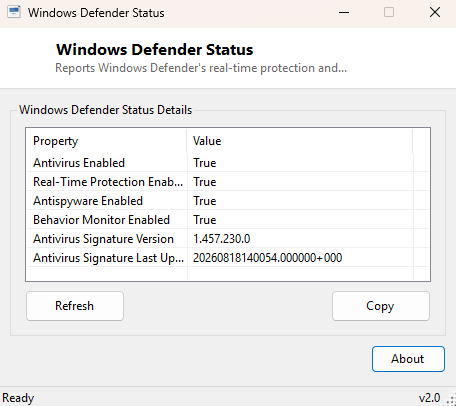
Windows Defender Status gives you a single, fast readout of exactly what Microsoft's built-in antivirus is doing right now — whether real-time protection is actually turned on, whether antispyware and behavior monitoring are active, and how current the virus definition signatures are. The Windows Security app answers the same questions, but it takes several seconds to open, buries the signature version and last-updated timestamp behind an extra click, and is easy to overlook entirely on a machine running a third-party antivirus, where Defender may have silently stepped back into a passive role. This tool exists to make that state visible in one glance rather than a guided tour through Settings.
It is a pure status reporter — it does not change any protection setting, does not trigger a scan, and does not attempt to enable or disable anything. If Defender is off because a different antivirus product has taken over real-time protection, that is expected behavior and this tool will simply report it accurately rather than treating it as an error.
Key Features
- Reports whether the antivirus engine is enabled overall
- Shows real-time protection status specifically
- Reports antispyware and behavior-monitoring component status
- Displays the current signature (definitions) version
- Shows the date and time signatures were last updated
- Handles the "another antivirus has taken over" case gracefully with a clear message
Why You Might Need This Tool
The most common reason to reach for this tool is confirming protection is actually active after a Windows feature update, which occasionally resets security settings or leaves Defender in an unexpected state. IT support uses it as a fast triage step when a machine is suspected of being compromised — stale signatures or disabled real-time protection are both immediate red flags worth ruling out first. It is also useful simply to confirm that installing or uninstalling a third-party antivirus product correctly handed protection responsibility back and forth with Defender, since Windows does not always surface that handoff clearly in its own UI.
How It Works
The tool queries the MSFT_MpComputerStatus WMI class, exposed in the
root\Microsoft\Windows\Defender namespace — the exact same
programmatic interface the Get-MpComputerStatus PowerShell cmdlet
uses internally, and the same data source Windows Security's own dashboard reads
from. Properties queried include AntivirusEnabled,
RealTimeProtectionEnabled, AntispywareEnabled,
BehaviorMonitorEnabled, AntivirusSignatureVersion and
AntivirusSignatureLastUpdated. If this namespace or class is
unavailable — which happens when Defender's own management components have been
fully superseded by certain third-party security suites — the tool catches that
condition and reports it plainly rather than crashing or showing a misleading
blank screen.
How to Use It
Open the tool and the status table populates immediately with no configuration needed. Click Refresh after installing updates, changing antivirus software, or whenever you want a fresh read rather than relying on whatever was displayed when the window was first opened, since none of these values update live in the background on their own.
System Requirements & Notes
Runs on 64-bit Windows 10 and Windows 11 and does not require administrator rights for standard status queries. On systems where Defender has been fully disabled by Group Policy or a competing security product, some or all fields may report as unavailable — this reflects the actual state of the machine, not a limitation of the tool.
Frequently Asked Questions
Can this tool turn Defender back on?
No, it is read-only by design. Use Windows Security or Group Policy to change
protection settings.
Why does it say Defender is unavailable even though I never disabled it?
A third-party antivirus product that registers itself as the primary protection
engine will cause Windows to hand off real-time protection duties, which can make
Defender's own status interface report as inactive or unavailable — this is normal.
Does checking status require an internet connection?
No — this tool only reads locally cached status information; it does not contact
Microsoft's servers.