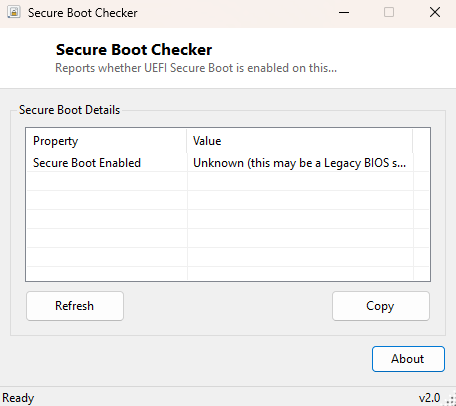
Overview
Secure Boot is a UEFI firmware feature that cryptographically verifies every piece of software involved in starting Windows — the bootloader, the kernel, and every driver loaded before the operating system fully takes over — rejecting anything not signed by a trusted authority. It is also a hard requirement for Windows 11 and increasingly a prerequisite for certain security features and enterprise compliance checks, yet confirming whether it is actually enabled normally means diving into the UEFI firmware setup screen during boot. Secure Boot Checker reports the current state directly from within Windows, no reboot required.
Key Features
- Reports whether UEFI Secure Boot is currently enabled
- Checks the same registry state Windows itself uses internally
- No reboot or firmware setup screen access required to check
Why You Might Need This Tool
Secure Boot status matters for several very practical reasons: confirming Windows 11 compatibility before attempting an upgrade, verifying a security compliance requirement for a corporate or regulated environment, or simply troubleshooting why a particular piece of software (certain virtualization features, some anti-cheat systems, or specialized Linux dual-boot configurations) is refusing to run. Checking this from within Windows, without rebooting into firmware setup and hunting through an unfamiliar UEFI menu, is a meaningful time-saver, especially on a machine you did not configure yourself.
How It Works
The tool reads the UEFISecureBootEnabled value from the registry key
HKLM\SYSTEM\CurrentControlSet\Control\SecureBoot\State — this is
the same location Windows itself populates and reads from internally when
determining Secure Boot status for its own compatibility checks, including the
Windows 11 upgrade eligibility check. If the key does not exist at all, the tool
reports that the system is very likely running on legacy BIOS rather than UEFI,
since the key is only created on UEFI-based systems in the first place.
How to Use It
Open the program and Secure Boot status is reported immediately with no configuration needed. No reboot, no firmware setup screen, and no elevated permissions are required for this check.
System Requirements & Notes
Runs on 64-bit Windows 10/11 with no administrator rights required — reading this specific registry value is permitted for standard users on all supported Windows versions.
Frequently Asked Questions
My system is UEFI but this tool says Secure Boot status is unknown — why?
A small number of UEFI systems, particularly older ones with a Compatibility Support
Module (CSM) enabled, may not populate this registry key clearly even when running
UEFI; checking the firmware setup screen directly is the definitive fallback.
Can I enable Secure Boot from within Windows using this tool?
No — Secure Boot can only be toggled from within the UEFI firmware setup screen
itself, accessed by restarting and entering firmware setup (commonly F2, Del or a
dedicated key depending on the manufacturer); this tool is read-only reporting.
Does Secure Boot being enabled mean my PC is fully protected against malware?
No — it protects specifically against unauthorized boot-time software, which is an
important layer of defense-in-depth but not a substitute for other security
measures.