Overview
BitLocker Status Viewer answers a question that sounds like it should have an
obvious answer but often does not: is this drive actually encrypted right now?
Windows scatters BitLocker's real status across a Control Panel applet, a
right-click menu option that only appears in certain contexts, and a command-line
tool (manage-bde -status) that most people have never typed. This
utility collapses all of that into a single list showing every volume on the
system and its current protection state, without opening a single Control Panel
window.
The distinction between "BitLocker is available" and "BitLocker is actually protecting this volume right now" matters more than it sounds like it should. Encryption can be paused (often silently, by a firmware update or a hardware change), a drive can be unlocked and left that way, or "device encryption" — the consumer-friendly automatic version many OEM laptops enable out of the box — can be active without ever showing up in the classic BitLocker Control Panel applet at all. This tool reads the same underlying state Windows itself tracks internally, cutting through that confusion.
Key Features
- Lists every volume with a drive letter and its current protection status
- Distinguishes Unprotected, Protected (On) and Unknown states clearly
- Checks all fixed and removable volumes in one pass
- Opens in under a second — no Control Panel navigation required
- Read-only: does not enable, disable, pause or resume encryption
- Copy-to-clipboard support for quick documentation or ticket notes
Why You Might Need This Tool
Laptop theft and loss are the classic scenario this matters for — if your device is ever lost or stolen, whether BitLocker was actually protecting the data drive (not just the C: drive) at that moment can matter enormously, and most people genuinely do not know the answer without checking. IT departments use tools like this constantly during compliance audits, since a policy that says "all laptops must be encrypted" is only meaningful if someone can quickly verify it across a fleet of machines rather than trusting that a setup script ran correctly on every one. It is equally useful after a drive-cloning or disk-swap operation, since a cloned system drive does not automatically carry over the same protection state as the original.
How It Works
The tool queries Win32_EncryptableVolume, a WMI class exposed in the
root\CIMV2\Security\MicrosoftVolumeEncryption namespace — the exact
same provider the built-in BitLocker Control Panel applet and
manage-bde both read from internally. For each returned instance it
reads the DriveLetter and ProtectionStatus properties,
mapping the numeric status code to a human-readable label: 0 means Unprotected, 1
means Protected (encryption is actively on), and 2 means Unknown, which typically
shows up when the query itself cannot determine state cleanly. Because this WMI
namespace occasionally requires elevated access on locked-down systems, the tool
catches and reports that condition honestly rather than showing a blank or
misleading result.
How to Use It
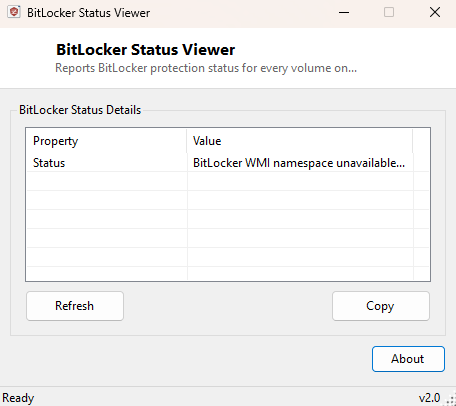
Launch the program and every recognized volume appears immediately with its protection state. Click Refresh after changing BitLocker settings through Control Panel to confirm the change actually took effect. If a particular system reports "BitLocker WMI namespace unavailable," that specific message means the query itself failed — try re-running as Administrator, since some hardened corporate configurations restrict this namespace to elevated processes.
System Requirements & Notes
Runs on 64-bit Windows 10 and Windows 11. Administrator rights are not required on most systems, though a small number of corporate-hardened configurations restrict WMI access to this specific security namespace and may require an elevated run. This tool never changes encryption state in any way.
Frequently Asked Questions
My laptop's data drive shows "Unprotected" but C: shows "Protected" — is that normal?
Yes, and it is worth fixing. BitLocker is enabled per-volume, and many people only
ever turn it on for the system drive, leaving secondary internal or external
drives unencrypted by default.
Does this tool let me turn BitLocker on?
No — it is intentionally read-only. Use Control Panel's "Manage BitLocker" or
manage-bde from an elevated prompt to change protection state.