Overview
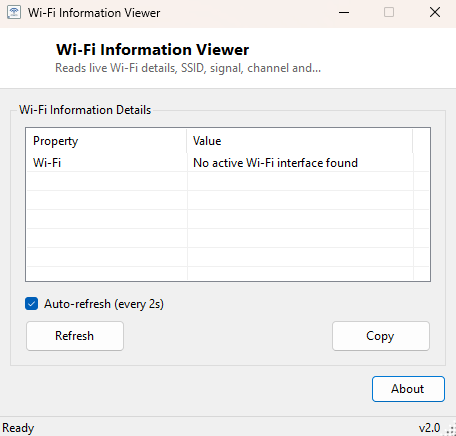
Wi-Fi Information Viewer reads the live status of your currently connected wireless network and lays it out in a clean, auto-refreshing table — SSID, connection state, radio type, signal quality, channel, link rates and the authentication/cipher combination securing the connection. Windows buries almost all of this behind several clicks through Settings, and even then only shows a subset at a time; this tool surfaces everything in one glance, refreshed automatically so you can watch signal quality change as you move around a building or troubleshoot a flaky connection in real time.
It is a read-only diagnostic viewer, not a Wi-Fi manager — it will not connect you to a new network or change any wireless settings. For recovering a forgotten saved Wi-Fi password, see Wireless Key View instead.
Key Features
- Shows SSID, connection state and radio type (802.11a/b/g/n/ac/ax) for the active adapter
- Reports signal quality percentage and current channel
- Displays live receive and transmit link rates in Mbps
- Shows the authentication method and cipher securing the connection
- Auto-refreshes so you can watch values change as conditions change
- No third-party Wi-Fi driver or admin rights required to read this data
Why You Might Need This Tool
Diagnosing a flaky Wi-Fi connection almost always starts with the same question: is the problem signal strength, channel congestion, or something further up the network stack? Watching signal quality and link rate drop as you move a laptop from one room to another gives you a concrete, numeric answer instead of a subjective "the Wi-Fi feels slow here" impression. It is equally useful for confirming a router configuration change actually took effect — switching from WPA2 to WPA3, or from a 2.4GHz to a 5GHz band, shows up immediately in the authentication and radio type fields once you reconnect.
How It Works
Rather than reimplementing Windows' native WLAN AutoConfig API from scratch, the tool
launches netsh.exe wlan show interfaces as a hidden background process,
captures its standard output, and parses the specific lines it needs — Name, SSID,
State, Radio type, Signal, Channel, Receive rate (Mbps), Transmit rate (Mbps),
Authentication and Cipher — out of netsh's plain-text report. This is the same
underlying data source Windows' own network flyout ultimately reads from, accessed
through the same command-line tool network administrators have used for years, just
re-parsed into a structured table and kept refreshing automatically rather than
requiring you to reopen a console window every time.
How to Use It
Launch the tool while connected to a wireless network and the current status populates within a couple of seconds — netsh needs a brief moment to gather the interface report. The table then keeps refreshing on its own; watch the Signal and rate fields specifically while you move around or while testing a router setting change. If no wireless interface is active (for example, on a desktop with no Wi-Fi adapter, or an Ethernet-only connection), the tool reports that no active Wi-Fi interface was found rather than showing stale or fabricated data.
System Requirements & Notes
Runs on 64-bit Windows 10 and Windows 11 with a wireless network adapter and does not require administrator privileges — querying interface status through netsh is a standard-user operation. A brief delay of a second or two between refreshes is normal, since each cycle launches a lightweight external process rather than querying an in-process API.
Frequently Asked Questions
Can this scan for and list nearby networks I am not connected to?
No — it reports live detail for your currently connected interface only. It is a
connection-status viewer, not a network scanner.
Does this reveal my Wi-Fi password?
No, this specific tool does not — it reports connection status only. For saved
password recovery, use Wireless Key View.
Why do the numbers update slightly slower than a live graph?
Each refresh cycle launches netsh as a fresh process and parses its output, which
takes a moment longer than an in-process API call — a deliberate tradeoff for using
the same stable, well-tested data source Windows itself relies on.