Overview
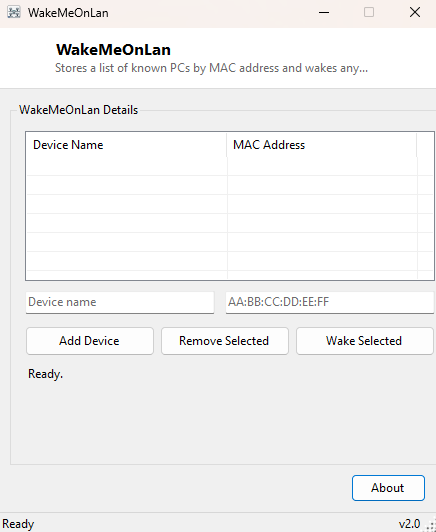
WakeMeOnLan solves a very specific, very useful problem: turning on a computer that is powered off, from another computer on the same network, without walking over and pressing the power button. It does this using Wake-on-LAN, a feature built into almost every network adapter and motherboard made in the last two decades, which lets a specially-formatted network packet act as a remote power switch. Unlike the plain one-shot Wake-On-LAN GUI utility elsewhere in this catalog, WakeMeOnLan is built around a persistent address book — you save the machines you regularly need to wake, by name and MAC address, once, and from then on waking any of them is a single click rather than re-typing a hardware address every time.
Key Features
- Saves a named list of devices with their MAC addresses for repeated use
- One-click wake for any saved device, no retyping addresses each time
- Add and remove devices directly from the list as your network changes
- Broadcasts a standard, universally-supported Wake-on-LAN magic packet
- Device list is saved automatically between sessions in your user profile
- No installation, no background service — only active while sending a wake request
Why You Might Need This Tool
The classic use case is a home server, NAS, or desktop PC that you deliberately keep powered off most of the time to save electricity and reduce wear, but need to be able to reach remotely for a file, a scheduled backup, or a remote-desktop session. Rather than leaving that machine running around the clock just in case, Wake-on-LAN lets you power it on exactly when you need it and let it sleep the rest of the time. It is equally useful in a small office setting where several machines need to be turned on together each morning before staff arrive, or for IT support scenarios where you need a colleague's machine powered on remotely before you can start a maintenance session on it.
How It Works
A Wake-on-LAN "magic packet" is a specific, simple binary pattern: six bytes of
0xFF followed by the target machine's six-byte MAC address repeated
sixteen times in a row, sent as a raw UDP datagram (conventionally to port 9) with the
network's broadcast address as the destination. WakeMeOnLan builds this exact 102-byte
packet using .NET's UdpClient class with broadcast enabled, and sends it
to 255.255.255.255 so every device on the local network segment receives
it — only the network adapter whose MAC address matches the sixteen repeated copies
inside the packet will actually respond and power the machine on, provided Wake-on-LAN
is enabled in that machine's BIOS/UEFI and network adapter driver settings. Your saved
device list itself is stored as a simple comma-separated text file in your
AppData folder, loaded automatically each time the tool starts.
How to Use It
The first time you use WakeMeOnLan, add each device you want to be able to wake by typing a friendly name and its MAC address (found via MAC Address Viewer while that machine is still on) and clicking Add Device. From then on, select any saved device from the list and click Wake Selected to send it a magic packet immediately.
System Requirements & Notes
WakeMeOnLan runs on 64-bit Windows 10/11 and does not require administrator rights — sending a broadcast UDP packet is a standard-user network operation. Wake-on-LAN only works across the local network segment by default (routers do not forward broadcast packets between subnets without specific configuration), and the target machine's BIOS/UEFI and network adapter power-management settings must have Wake-on-LAN enabled for the magic packet to have any effect.
Frequently Asked Questions
Why doesn't the target machine wake up?
Almost always a firmware or driver setting — check that Wake-on-LAN is enabled in the
target's BIOS/UEFI and that its network adapter's power-management properties allow
the device to wake the computer.
Can I wake a device outside my local network?
Not without extra router configuration to forward the wake packet, since standard
Wake-on-LAN relies on a local broadcast address that routers do not pass through by
default.
How is this different from Wake-On-LAN GUI on this site?
Wake-On-LAN GUI is a single-use, type-and-send tool for a one-off wake request;
WakeMeOnLan keeps a persistent, reusable list of devices for repeated everyday use.