Overview
Ping is the single most fundamental network diagnostic there is, and yet most people
only ever run it through a command prompt window that closes the moment they hit
Enter on the wrong follow-up command. Ping Utility gives the classic four-ping
connectivity test a proper, persistent window — type a host, click one button, and get
a clean readout of round-trip times and packet loss without ever touching
cmd.exe. It is deliberately the simplest tool in the Network Tools
category, and that simplicity is the entire point: sometimes you just need to know
"is this thing reachable, and how fast," nothing more.
Key Features
- Classic four-ping connectivity test against any hostname or IP address
- Reports round-trip time and TTL for each individual reply
- Summarizes minimum, maximum and average round-trip time across all replies
- Calculates and displays packet-loss percentage automatically
- Scrollable output window keeps a record of the full test, not just the last line
- Runs asynchronously so the window never freezes while waiting on replies
Why You Might Need This Tool
"Is the internet down, or is it just this one website?" is one of the most common troubleshooting questions there is, and a quick ping against a reliable external host answers it in seconds. It is equally useful for confirming a server, router or other device on your local network is actually reachable before you spend time debugging something more complicated, or for a rough, informal comparison of latency to two or three different hosts side by side. Because the tool stays open and keeps a scrollable log, it is also handy for capturing a quick screenshot of connectivity results to include in a support request or a note to yourself.
How It Works
Ping Utility is built on .NET's System.Net.NetworkInformation.Ping class,
which sends genuine ICMP Echo Request packets — the same protocol-level mechanism the
command-line ping.exe uses — rather than any kind of simulated or
TCP-based substitute. The tool sends four requests asynchronously via
SendPingAsync, each with a three-second timeout, and for every successful
reply it records the responding address, round-trip time in milliseconds and the
reply's TTL (time-to-live) value. After all four attempts complete, it calculates the
minimum, maximum and average round-trip time across successful replies and reports
packet loss as a straightforward percentage — for example, one lost reply out of four
is reported as 25% loss, matching exactly how the standard command-line ping tool
summarizes results.
How to Use It
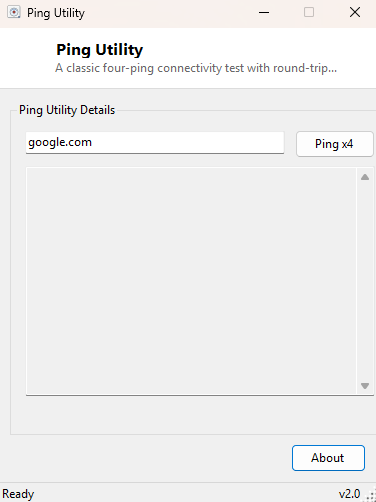
Type a hostname (like google.com) or an IP address into the input box and
click Ping x4. Each reply appears in the output window as it arrives,
followed by a summary line showing minimum, maximum, average round-trip time and
overall packet loss once all four attempts finish.
System Requirements & Notes
Ping Utility runs on 64-bit Windows 10/11 and does not require administrator rights. Some networks and firewalls block ICMP traffic entirely for security reasons, which will show up here as 100% packet loss even though the target may otherwise be perfectly reachable over other protocols like HTTP — this is a network policy limitation, not a fault in the tool.
Frequently Asked Questions
Why does a website I can browse to show as unreachable here?
Many servers and firewalls deliberately block or deprioritize ICMP ping traffic while
still serving normal web traffic fine — a failed ping does not always mean the service
itself is down.
Can I ping continuously instead of just four times?
For a continuous single-host stream, see MyPing elsewhere in
this catalog; this tool is intentionally scoped to the classic fixed four-ping test.
Does this tool need an active internet connection to run?
No to launch it, but obviously yes to get any successful replies when pinging an
external host — pinging a local network device works fine offline.