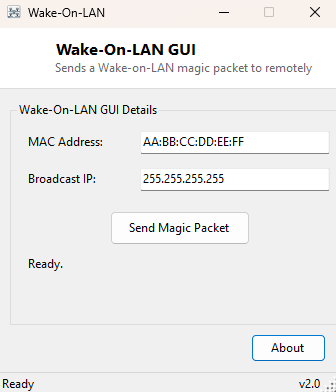
Overview
Wake-On-LAN GUI sends a Wake-on-LAN "magic packet" to remotely power on a sleeping or fully shut-down PC over the local network, provided that PC's network adapter and BIOS/UEFI firmware have Wake-on-LAN enabled. It is a simple, single-purpose front end for a networking trick that has existed since the late 1990s: broadcast a specific packet pattern containing a target machine's MAC address, and a WOL-capable network adapter will respond even while the rest of the system is powered down, triggering the motherboard to boot.
This tool sends one magic packet to one MAC address at a time. For managing and waking a saved list of known machines rather than typing an address each time, see WakeMeOnLan in the same category.
Key Features
- Sends a standards-compliant Wake-on-LAN magic packet to any MAC address you enter
- Configurable broadcast IP address, defaulting to the standard local broadcast address
- Accepts MAC addresses in colon- or hyphen-separated format
- Single-click send with immediate status confirmation
- No installation, no background service, no persistent network listener
Why You Might Need This Tool
The most common use case is remote access convenience: you want to connect to a home or office PC over remote desktop, but it is powered off to save electricity, and you are not physically present to press the power button. Sending a magic packet from another device on the same local network (or from a router configured to forward WOL packets) wakes the target machine so it is ready by the time your remote session connects. It is equally useful for scheduled overnight tasks — waking a backup or media server just before a scheduled job needs it, rather than leaving it powered on around the clock.
How It Works
A Wake-on-LAN magic packet has a precisely defined structure: six bytes of
0xFF, followed by the target's six-byte MAC address repeated sixteen
times in a row, for a fixed 102-byte payload. The tool parses the MAC address you
enter (stripping colons or hyphens), builds that exact byte sequence, and sends it as
a single UDP datagram to port 9 (the traditional Wake-on-LAN discard port) at the
broadcast address you specify, using System.Net.Sockets.UdpClient with
broadcast enabled. Any WOL-capable network adapter on the local segment that is still
receiving standby power will recognize its own MAC address repeated in that pattern
and signal the motherboard to power on — the same mechanism used by every commercial
Wake-on-LAN utility.
How to Use It
Enter the target machine's MAC address (found via MAC Address Viewer on that machine beforehand, or noted from its network adapter properties) and confirm the broadcast IP address matches your local subnet — the default of 255.255.255.255 works for most single-router home networks. Click Send Magic Packet; the status line confirms the packet was transmitted. The target machine typically takes anywhere from several seconds to roughly a minute to fully boot, depending on its hardware and BIOS settings.
System Requirements & Notes
Runs on 64-bit Windows 10 and Windows 11 and does not require administrator privileges to send the packet. Wake-on-LAN must be explicitly enabled on the target machine — both in its BIOS/UEFI firmware settings and in its network adapter's power management properties in Device Manager — before any magic packet will have an effect; this tool cannot enable that setting remotely, only send the packet once it is already configured.
Frequently Asked Questions
Will this wake a PC over the internet, not just the local network?
Only if your router is specifically configured to forward the WOL broadcast or UDP
port 9 to your local network — by default, broadcast packets do not cross the
internet, so this typically works only within the same local network unless your
router setup extends it.
Why isn't my PC waking up even though I sent the packet?
The most common cause is Wake-on-LAN not being enabled in either the BIOS/UEFI or the
network adapter's Device Manager power settings — both need to be turned on, and some
motherboards additionally require "ErP/EuP" power-saving modes to be disabled for WOL
to function from a fully powered-off state.
Does the target PC need to be in sleep mode, or can it be fully off?
Modern WOL-capable adapters can wake a system from both sleep and a full shutdown (S5
state), as long as the adapter continues receiving standby power and WOL is enabled;
older hardware sometimes only supports waking from sleep.