Overview
Shutdown Timer Classic replaces the command line incantation almost everyone ends
up copy-pasting from a forum post at some point — shutdown /s /t 3600
typed into Run and immediately forgotten about — with a small, visible window that
shows exactly what is scheduled and exactly how much time is left. It sets a
countdown to automatically shut down, restart, sign out or hibernate the machine,
and unlike the raw command line version, it gives you a clearly labeled Cancel
button rather than requiring you to remember the separate shutdown /a
abort syntax under pressure while a download is still running.
The tool is intentionally narrow. It does not try to be a full task scheduler, it does not offer recurring schedules, and it does not run in the background as a service waiting for a trigger condition. You open it, you set one timer, it counts down, and it either fires the action you picked or you cancel it — a single-purpose tool matching a single-purpose problem.
Key Features
- Four end actions: Shutdown, Restart, Sign Out and Hibernate
- Countdown set in minutes, up to 24 hours (1,440 minutes) ahead
- Large, constantly updating HH:MM:SS countdown display
- One-click Cancel that aborts the pending action cleanly
- Inputs lock while a timer is running so you cannot accidentally change the action mid-countdown
- No system tray footprint and no background service — the timer only runs while the window is open
Why You Might Need This Tool
The classic use case is a long download, render, or backup that you want the machine to shut down after, so you are not paying for electricity or leaving a laptop's screen lit overnight for no reason. A second very common use is the opposite intent — giving yourself a hard stop. Setting a 90-minute shutdown timer before a gaming session or a late-night work stretch acts as a self-imposed deadline that is much harder to snooze than a phone alarm, since the PC genuinely turns off. Restart and Sign Out are useful for scheduled maintenance windows — kicking off a restart at the end of a shift without needing to physically be at the desk when it happens — and Hibernate is the gentler option when you want the machine to stop drawing power without losing open work, unlike a full shutdown.
How It Works
Internally, Shutdown Timer Classic keeps a TimeSpan counting down and
a one-second Timer tick decrementing it, refreshing the HH:MM:SS
label on every tick. When the countdown reaches zero, the tool calls
Process.Start("shutdown.exe", ...) with the argument matching your
chosen action — /s /t 0 for an immediate shutdown, /r /t 0
for restart, /l for sign out, or /h for hibernate. These
are the exact same command-line switches the Windows shutdown.exe tool
itself has always accepted, which is deliberate: rather than reimplementing power
state transitions with lower-level Windows APIs, the tool leans on the same
well-tested system binary Windows already ships and trusts. Cancel works the same
way in reverse — it stops the local countdown immediately and, as a safety measure,
also issues shutdown.exe /a to abort any shutdown that might already
be in Windows' own pending-shutdown state.
How to Use It
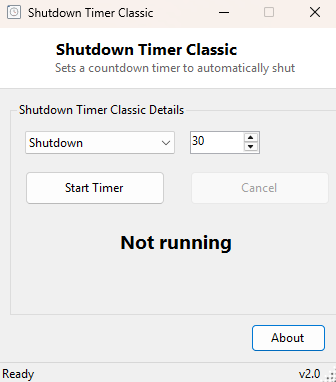
Choose an action from the dropdown (Shutdown, Restart, Sign Out or Hibernate), set the number of minutes, and click Start Timer. The countdown display takes over immediately and the action selector locks to prevent accidental changes. To stop the countdown at any point before it completes, click Cancel — the display returns to "Not running" and the controls unlock. If the countdown reaches zero, the selected action fires immediately with no further confirmation dialog, so double-check the action and the time before starting.
System Requirements & Notes
Runs on 64-bit Windows 10 and Windows 11 and does not require administrator rights for any of the four actions — shutting down, restarting, signing out or hibernating your own interactive session are all standard-user operations in Windows. Save your work before the timer completes; the tool does not prompt open applications to save first, the same way manually choosing Shut Down from the Start menu would.
Frequently Asked Questions
Can I schedule a recurring daily shutdown?
No — this tool is a one-shot countdown by design. For recurring schedules, Windows'
own Task Scheduler is the appropriate tool; Shutdown Timer Classic intentionally
stays simpler than that.
What happens to unsaved work when the timer fires?
Whatever normally happens with that action in Windows — a shutdown or restart will
prompt applications to close in the usual way, and any application that blocks
exit with an unsaved-changes dialog will still show it, exactly as if you had
triggered the action manually from the Start menu.
Does closing the window cancel the timer?
Yes. The countdown only runs while the Shutdown Timer Classic window is open; closing
it stops the timer the same as clicking Cancel.