Overview
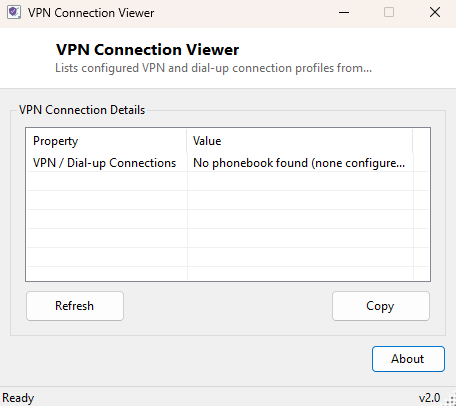
Every VPN and dial-up connection you configure through Windows' built-in Network Connections wizard gets written into a single plain-text phonebook file, and over the years that file quietly accumulates entries for VPNs you set up once for a conference, a client site, or a trip and then forgot about entirely. VPN Connection Viewer reads that phonebook and lists every configured connection profile by name alongside its target phone number or server address, giving you a clean inventory of what is actually configured on your machine without opening the Network Connections control panel and clicking through each one individually.
This tool is intentionally scoped as an inventory viewer only. It lists connection names and addresses — information the phonebook file stores in plain text by design — and does not attempt to read, decrypt or display any saved credentials, which Windows stores separately and far more securely through the Credential Manager rather than in the phonebook itself.
Key Features
- Lists every VPN and dial-up connection profile configured for the current user
- Shows each connection's configured phone number or server address alongside its name
- Refresh button to re-scan after adding or removing a connection in Windows Settings
- Copy-to-clipboard support for building a quick written inventory
- Read-only — never modifies, adds or removes any connection profile
Why You Might Need This Tool
IT support staff auditing a machine before reimaging or handing it off to someone else often want a quick list of what VPN connections exist so nothing gets carried over unintentionally to a new user. Individuals troubleshooting "why does this VPN keep trying to connect on startup" benefit from seeing every configured profile at once rather than opening Settings and clicking through Network & Internet one entry at a time. It is also a handy way to confirm a VPN profile someone else set up on your behalf was actually created correctly and points at the address you expect.
How It Works
Windows stores every dial-up and VPN connection profile in a single file,
rasphone.pbk, located under
%APPDATA%\Microsoft\Network\Connections\Pbk\. This file uses a simple
INI-style plain-text format, with each connection appearing as a
[ConnectionName] section header followed by key-value configuration
lines, one of which is typically PhoneNumber= holding the dial-up
number or VPN server address. The tool reads this file line by line, tracking the
current section name, and whenever it encounters a PhoneNumber= line it
pairs that value with the section header currently in scope, adding a completed
name/address pair to the results list once a new section begins or the file ends.
Crucially, this file format never contains passwords — Windows stores VPN and
dial-up credentials separately through the Credential Manager and DPAPI-encrypted
storage, so there was never a secret for this tool to read in the first place, which
is precisely why a plain-text phonebook scan is a safe, appropriate technique here.
How to Use It
Launch the tool and it automatically scans your phonebook file and lists every connection found. Click Refresh after adding, removing or renaming a VPN connection through Windows Settings to update the list. Use Copy to place the full list on the clipboard for pasting into a support ticket or an inventory document.
System Requirements & Notes
Requires no administrator privileges — the phonebook file lives in the current user's own profile and is readable by that user without elevation. Only connections configured for the currently logged-in Windows user are shown; system-wide "all users" VPN profiles configured by an administrator may be stored separately and are not covered by this tool.
Frequently Asked Questions
Can this show me my VPN password?
No, and it never will by design — the phonebook file this tool reads does not
contain passwords at all, and this tool does not query Windows Credential Manager,
where the actual saved secrets live.
Why doesn't this show a VPN my IT department set up?
Connections deployed system-wide by Group Policy or an administrator for all users
may be stored outside the per-user phonebook this tool reads, or configured through
a third-party VPN client with its own separate configuration store.
Can I delete a connection from this tool?
No — this is a read-only viewer. Remove unwanted VPN connections through Windows
Settings under Network & Internet → VPN.