Overview
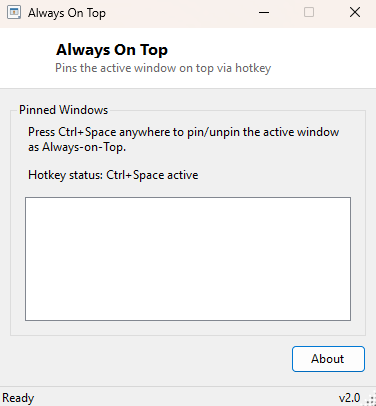
Always On Top solves the problem of wanting one specific window to stay visible above every other window on your desktop, even when a program was never built with that option in its own menus. Video players, calculators, chat windows, note apps and reference documents are the classic candidates — you want them floating in the corner of your screen while you work in something else underneath, but Windows has no built-in, universal way to pin an arbitrary window like that. This tool adds exactly that capability system-wide, triggered by a single global keyboard shortcut that works no matter which application currently has focus.
Unlike utilities that require you to keep a window open and manually click a pin icon, Always On Top runs quietly in the background and responds to one hotkey: press it once to pin whatever window is currently active, press it again on that same window to unpin it. No menus, no dialogs, no interruption to what you were doing.
Key Features
- System-wide Ctrl+Space hotkey that works regardless of which application has focus
- Toggles topmost state on and off for the currently active window
- Keeps a running list of every window currently pinned, visible in the main window
- No per-application configuration — works with any standard window
- Automatically releases every pinned window's topmost state when the tool exits
- Minimal memory footprint since it only listens for one hotkey message
Why You Might Need This Tool
The most common scenario is keeping a reference open while working in something else full-screen — a video call window during a presentation, a calculator during spreadsheet work, a music player's mini-view while writing, or a chat window you need to glance at without alt-tabbing away from a game or a full-screen editor. Some applications offer a built-in "always on top" checkbox, but plenty of common, perfectly good software simply does not, and installing a separate always-on-top add-on for every individual program you might want to pin is impractical. Always On Top gives you the same capability for literally any window, application-agnostic, with one consistent shortcut you only have to remember once.
How It Works
On launch, the tool registers a system-wide hotkey (Ctrl+Space) using the Win32
RegisterHotKey API, which asks Windows to deliver a
WM_HOTKEY message to this application whenever that key combination is
pressed anywhere on the system, regardless of which window currently has focus. The
message is intercepted by overriding WndProc. When it fires, the tool
calls GetForegroundWindow to identify whichever window the user was
just interacting with, reads its title with GetWindowText for display
purposes, and checks an internal set of already-pinned window handles. If the window
is not yet pinned, it calls SetWindowPos with the special
HWND_TOPMOST insert-after handle (combined with the
SWP_NOMOVE/SWP_NOSIZE flags so its position and size are
left untouched) to promote it above all normal windows; pressing the hotkey again on
that same window calls SetWindowPos a second time with
HWND_NOTOPMOST to release it back to normal Z-order behavior.
How to Use It
Launch Always On Top and leave it running — there is nothing to configure on startup. Click into whichever window you want pinned so it becomes the active (foreground) window, then press Ctrl+Space. That window immediately stays above every other window until you press Ctrl+Space again while it is active, which releases it. The main Always On Top window itself lists every currently pinned title so you always know what is active.
System Requirements & Notes
Runs on 64-bit Windows 10/11 and does not require administrator rights for normal application windows. If Ctrl+Space is already claimed by another running program (some Input Method Editors use it for language switching), the hotkey registration will fail and the status line will report it so you know immediately rather than silently not working.
Frequently Asked Questions
Does the pin survive if I close Always On Top?
No — closing the tool explicitly releases every window it had pinned back to normal
Z-order, so nothing is left stuck on top after you exit.
Can I pin more than one window at a time?
Yes. Each window is tracked independently by its own handle, so you can pin as many
as you like; the hotkey simply toggles whichever window currently has focus.
Can the hotkey be changed?
The current version uses a fixed Ctrl+Space shortcut, chosen because it rarely
conflicts with common application shortcuts.