Overview
Anyone who has changed a monitor's resolution, unplugged a second display, or had Windows crash mid-session knows the small but genuinely annoying aftermath: every desktop icon has been silently reshuffled into a grid you did not choose, usually starting from the top-left corner as if you had never organized anything at all. DesktopOK exists to make that moment reversible. It captures the exact pixel position of every icon on your desktop into a named snapshot, and later restores that exact layout with one click — no re-dragging icons back into place from memory, no guessing where the "Projects" folder used to sit relative to the recycle bin.
The tool works directly against the same list-view control Windows Explorer uses to render the desktop itself, which means it captures true pixel coordinates rather than an approximate arrangement — the layout it restores is the layout you saved, not a best guess at one.
Key Features
- Save the current desktop icon layout as a named snapshot at any time
- Restore any previously saved snapshot with a single click
- Store multiple named snapshots for different monitor configurations
- Snapshots are stored as small plain-text files, easy to inspect or back up
- No installation, no background service — runs only when you launch it
- Works identically whether icons are arranged manually or auto-arranged by Windows
Why You Might Need This Tool
The most common trigger is a resolution or display-configuration change: switching from a laptop's built-in screen to a docked external monitor, unplugging a second monitor before a trip, or simply changing scaling settings, all of which can cause Windows to silently re-flow every icon into a new grid the moment the desktop area changes shape. A second common trigger is an application or Explorer crash, which occasionally resets icon positions as a side effect of Explorer restarting. If you keep your desktop deliberately organized — project folders on the left, shortcuts grouped by client on the right, a specific spot reserved for whatever you are actively working on — losing that arrangement is a small but real productivity tax every single time it happens. Saving a snapshot once, right after you finish organizing, turns a five-minute manual re-drag into a two-second restore.
How It Works
Windows renders the desktop's icons using a standard SysListView32
control, hosted inside a SHELLDLL_DefView window that in turn lives
inside either the classic Progman ("Program Manager") window or, on
newer Windows builds that host the desktop in a separate compositing layer, a
WorkerW window. DesktopOK locates this exact control chain using the
Win32 FindWindow and FindWindowEx APIs, walking from
Progman down through SHELLDLL_DefView to the SysListView32 handle — trying the
WorkerW path as a fallback if the direct Progman path does not resolve, since
different Windows versions and third-party shell tweaks can change which parent
hosts the view. Once it has the list-view handle, it sends the standard
LVM_GETITEMCOUNT message to find out how many icons exist, then loops
through each index sending LVM_GETITEMPOSITION, which returns the
icon's X and Y coordinate packed into a single return value. Each index/X/Y triple
is written to a small text file named after the snapshot. Restoring simply reverses
the process — for each saved line, it sends LVM_SETITEMPOSITION with
the packed coordinate back to the same list-view handle, and Windows redraws every
icon exactly where it was.
How to Use It
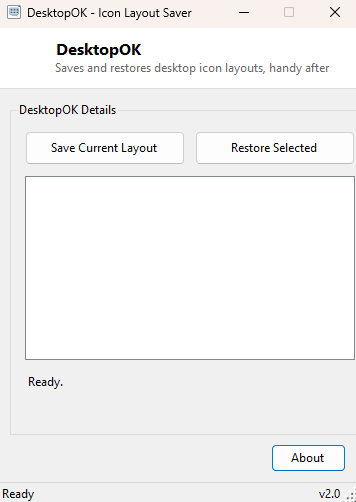
To save your current layout, click Save Current Layout, type a name for the snapshot (for example "Docked" or "Laptop Only"), and confirm. To restore a layout later, select its name from the list and click Restore Selected — every icon jumps back to its saved position immediately. Snapshots persist between sessions, so you can save one layout per monitor configuration and switch between them as your setup changes.
System Requirements & Notes
DesktopOK runs on 64-bit Windows 10 and 11 and does not require administrator rights — reading and setting desktop icon positions through the list-view messages described above is a standard-user operation. Snapshots are stored per user in the application data folder and are not shared between different Windows accounts on the same machine.
Frequently Asked Questions
Will this move icons between different desktop resolutions correctly?
Positions are saved as raw pixel coordinates, so a layout saved at one resolution
will restore at those same coordinates even if the resolution has since changed —
keep a separate named snapshot per resolution or monitor configuration for the
cleanest results.
Does it back up icon files themselves, or only positions?
Only positions. DesktopOK does not touch the shortcuts or files themselves, so it
cannot recover a deleted icon — only where an existing icon sits on screen.