Overview
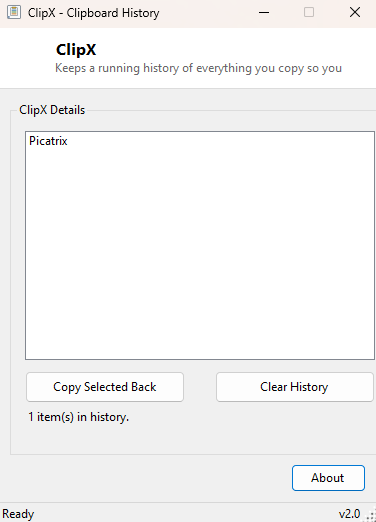
Windows' clipboard holds exactly one thing at a time, which is fine right up until the moment you copy something new and realize you actually still needed the thing you copied three steps ago. ClipX solves that specific, universally familiar frustration by quietly keeping a running history of everything you copy as plain text, so that "one more thing" you copied over is never truly gone — it is sitting a few rows down in a simple list, ready to be copied back to the clipboard in one click.
This is a deliberately minimal take on clipboard history. There is no cloud sync, no image or rich-format capture, no complicated pinning system with folders and tags — just a straightforward, local, session-based list of text you have recently copied, in the order you copied it, with the newest entry always at the top.
Key Features
- Automatically captures every text copy operation while running
- Displays up to the last 50 entries, newest first
- One click copies any historical entry back to the live clipboard
- Long entries are shown as a truncated preview so the list stays scannable
- Manual "Clear History" button when you want a clean slate
- No cloud sync, no file logging — history lives only in memory while running
Why You Might Need This Tool
The scenario repeats itself constantly during real work: you copy a URL, then copy a customer's name, then copy an order number, and by the time you go to paste the URL you realize the clipboard now only remembers the order number. Without a history tool your only option is to go back and find the URL again — switch windows, scroll, re-select, re-copy. Writers pulling quotes from multiple sources, developers copying several variable names or file paths in sequence, and anyone filling out a form field-by-field from a spreadsheet all run into this same wall dozens of times a day. ClipX removes the wall entirely: whatever you copied, however many steps ago, is still sitting in the list waiting for you.
How It Works
ClipX does not use a Windows clipboard-format-listener hook; instead it runs a
lightweight polling timer on a 500-millisecond interval that checks
Clipboard.ContainsText() and compares the current
Clipboard.GetText() value against the last value it recorded. When the
text has genuinely changed, it inserts the new value at the top of an internal list,
generates a truncated 60-character preview (collapsing any embedded line breaks into
spaces so multi-line copies still display as a single readable row), and trims the
list down to the most recent 50 entries once that cap is exceeded. This
polling-based approach was chosen deliberately over a low-level clipboard-format
listener because it is simpler, has no risk of interfering with other applications
that also watch clipboard changes, and a half-second delay is imperceptible for a
manual copy-paste workflow.
How to Use It
Just leave ClipX running in the background while you work — no configuration is needed. Copy text normally throughout your session, and every distinct value you copy appears as a new row at the top of the list. When you need something from earlier, select it in the list and click Copy Selected Back to restore it to the live clipboard, then paste as usual. Click Clear History at any point to wipe the current list, for example before copying anything sensitive you would rather not leave sitting in a visible history.
System Requirements & Notes
ClipX runs on 64-bit Windows 10 and 11 and requires no administrator rights — reading
and writing clipboard text through the standard .NET Clipboard class is
a normal user-level operation. History exists only in memory for the current run and
is never written to disk, so closing the program clears it permanently and no trace
is left behind.
Frequently Asked Questions
Does ClipX capture copied images or files, not just text?
No — this version tracks plain text only. Copying an image or a file selection from
Explorer will not add an entry to the history.
Is my clipboard history saved between restarts?
No. History lives only in memory while ClipX is running and is discarded the moment
you close it, which is intentional for privacy — nothing you copy is ever written
to a file on disk.