Overview
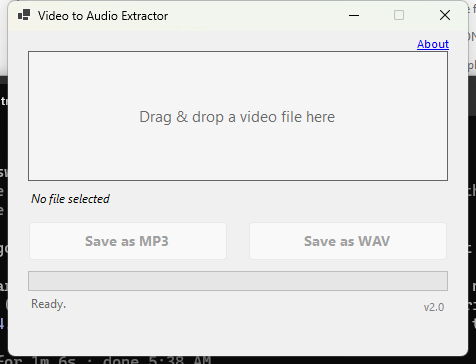
Video to Audio Extractor does exactly one job: it pulls the audio track out of a video file and saves it as a standalone MP3 or WAV. It exists for the moment right after recording a screen-capture or demo video, when what you actually need next is just the narration — separated cleanly from the video container so it can be edited, cleaned up, or run through a transcription tool that expects a plain audio file rather than a video wrapper.
There is no video editing here, no format conversion beyond audio extraction, and no settings to configure before you can use it. Drop a video file onto the window, click MP3 or WAV, and the audio track is written next to the source video under the same filename with the appropriate extension.
Key Features
- Drag-and-drop a video file directly onto the window
- One-click extraction to MP3 (high-quality VBR) or WAV (44.1 kHz PCM stereo)
- Output file automatically named after the source video
- Existing files are never overwritten — a numbered copy is created instead
- Offers to open the destination folder as soon as extraction finishes
- Supports common containers: MP4, MOV, AVI, MKV, WMV, FLV, WebM, M4V, MPG, TS
Why You Might Need This Tool
Anyone producing software demo videos, tutorials, or narrated screen recordings ends up needing the spoken audio on its own sooner or later — for editing out mistakes, for running noise reduction, or for feeding into a transcription service that returns accurate word-level timestamps. Pulling that audio out by hand usually means opening a full video editor just to export one track, which is a lot of overhead for a task that takes two clicks here.
How It Works
The tool hands the video file to a bundled copy of FFmpeg, the
industry-standard media engine, requesting only the audio stream — the
-vn flag strips video entirely so no re-encoding of picture data ever
happens. MP3 output uses FFmpeg's libmp3lame encoder at a high VBR quality
setting; WAV output is written as uncompressed 16-bit PCM at 44.1 kHz stereo, matching
standard transcription and editing tool expectations. Because only the audio stream is
decoded and re-muxed, extraction typically finishes in a couple of seconds even for a
video several minutes long.
How to Use It
Launch the program and drag a video file from Explorer onto the drop area — the filename appears once it is accepted. Click Save as MP3 or Save as WAV depending on the format you need. A short progress indicator runs while FFmpeg processes the file, and a confirmation dialog appears the moment the audio file is saved, offering to open the containing folder with the new file already selected.
System Requirements & Notes
Runs on 64-bit Windows 10 and Windows 11 and does not require administrator rights. The download is self-contained and includes everything needed to run, including the bundled FFmpeg engine — no separate .NET runtime or codec pack installation is required.
Frequently Asked Questions
Why is the download larger than most utilities on this site?
The download bundles a full copy of FFmpeg to guarantee reliable extraction across a
wide range of video formats and codecs without requiring you to install anything
separately.
Does it re-encode the video or change its quality?
No — the source video file is never modified. Only the audio track is read and
written out as a new, separate file.
What if the video has no audio track?
Extraction will fail with an error message, since there is no audio stream to save.