Overview
"Why won't this drive spin up when I plug it into this particular port?" is one of the most common USB complaints, and the honest answer is almost always about power, not data. Every USB port has a power budget, and bus-powered external drives, some hubs, and certain accessories can draw right up against — or past — what a given port or hub is rated to deliver. USB Power Information exists to surface what Windows itself can tell you about the USB power picture on your system, and, just as importantly, to be honest about the parts of that picture Windows does not expose to ordinary applications at all.
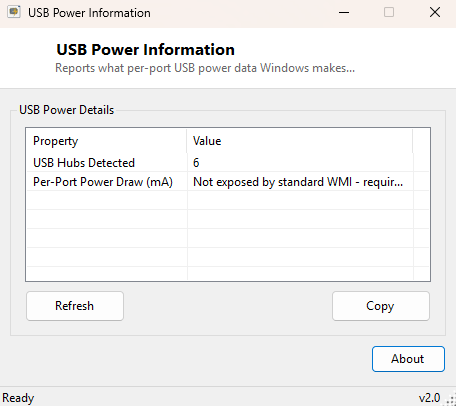
This tool takes a deliberately transparent approach. Rather than guessing at per-port wattage numbers Windows will not actually hand over through supported APIs, it reports what is genuinely available — a count of detected USB hubs — and states plainly where the trail runs out, rather than fabricating plausible-looking numbers that would be pure invention.
Key Features
- Counts every USB hub Windows currently detects on the system
- Clearly documents which power details standard Windows APIs do and do not expose
- One-click Refresh to re-scan after connecting or disconnecting hubs
- Copy button for pasting the summary into a support ticket
- Fast, instant scan with no waiting or progress bar needed
- Purely read-only — makes no changes to any USB configuration
Why You Might Need This Tool
The most frequent trigger for reaching for a tool like this is troubleshooting an external drive, card reader or webcam that behaves erratically only when connected through a particular hub or port — disconnecting intermittently, failing to spin up, or drawing a Windows warning about exceeding a USB port's power capacity. Getting a quick hub count is a useful first diagnostic step: a system with several daisy-chained unpowered hubs is far more likely to be running into a genuine power ceiling than one with a single hub directly off the motherboard. It is also useful context when deciding whether a misbehaving device needs a separately-powered hub rather than being purely a driver problem.
How It Works
The tool runs a WMI query against Win32_USBHub, counting the returned
instances to report how many hub objects Windows currently sees in its device
tree — this covers both the internal root hubs a motherboard's USB controllers
expose and any external hubs plugged in. For the per-port power draw figure people
often actually want, the tool is explicit that this data is not exposed by
standard WMI: retrieving genuine per-port milliamp figures requires going
around Windows' public device APIs entirely and querying the USB stack through the
undocumented SetupAPI power-state interfaces that manufacturer-specific diagnostic
tools sometimes use — a level of low-level hardware access outside what a small,
trustworthy general-purpose utility should attempt. Rather than fake a number here,
the tool says so directly in its output.
How to Use It
Launch the program and the hub count appears immediately alongside the power-data disclosure note. Click Refresh after physically adding or removing a hub to update the count. Use Copy to grab the summary as text.
System Requirements & Notes
Runs on 64-bit Windows 10 and Windows 11, no administrator rights required — the
underlying Win32_USBHub query is a standard-user WMI read. This tool
changes nothing on your system.
Frequently Asked Questions
Can this tell me exactly how many milliamps a port is delivering?
No, and it will not pretend to — that figure is not available through the
supported Windows APIs this tool relies on. Manufacturer-specific diagnostic
software from your motherboard or hub vendor is the only reliable source for that.
My drive only fails on one specific port — is that a power issue?
It's the most common cause, especially with bus-powered 2.5" drives on
unpowered hubs. Try a directly-motherboard-connected port or a powered hub before
assuming a hardware fault.