Overview
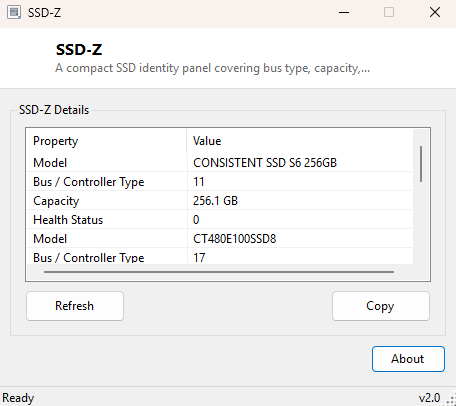
SSD-Z is a compact identity panel built specifically for solid-state drives. Where most storage tools in this catalog give you a single fact — a model name, a capacity, a health percentage — SSD-Z pulls together four of the most useful SSD-specific facts into one window: which bus the drive is actually attached through, its true reported capacity, its overall health status straight from the drive's own controller, and two things most general-purpose disk tools skip entirely — whether TRIM is currently active, and whether every partition on the drive is properly 4K-aligned.
The name and format are a direct homage to the classic SSD-Z utility that popularized this exact "one-screen SSD identity card" layout years ago. This is a clean, modern .NET reimplementation built on the current Windows Storage Management WMI provider rather than legacy ATA pass-through calls, so it works reliably on NVMe drives as well as SATA SSDs.
Key Features
- Automatically filters out spinning hard drives, showing solid-state media only
- Reports the bus/controller type (NVMe, SATA, USB) for each SSD
- Shows true formatted capacity in gigabytes alongside the controller's health status word
- Checks and reports whether TRIM is active or disabled system-wide
- Verifies 4K sector alignment on every partition on the drive
- One-click copy of the entire report to the clipboard for pasting into a support ticket
Why You Might Need This Tool
TRIM and partition alignment are two of the quietest performance killers on an SSD,
precisely because neither one causes an obvious error — a drive with TRIM disabled
or a misaligned partition simply gets slower over months of use rather than failing
outright, so most people never think to check either setting. This matters most
after cloning an old hard drive's partition layout onto a new SSD, restoring an
image backup that was created before 4K alignment became the default, or after a
third-party disk utility has changed low-level Windows storage settings. SSD-Z gives
you a fast way to confirm both are correct without digging through fsutil
command-line output or a full disk management console. It is also a quick way to
sanity-check a newly purchased SSD before relying on it for anything important —
confirming it reports a sensible bus type and a healthy status straight out of the
box catches a mismatched or failing drive early.
How It Works
SSD-Z queries the modern Storage Management WMI namespace,
root\Microsoft\Windows\Storage, for the MSFT_PhysicalDisk
class — the same provider PowerShell's Get-PhysicalDisk cmdlet uses —
and filters results to MediaType = 4, the enumeration value Windows
uses specifically for solid-state media, so spinning hard drives never appear in the
list. From each matching disk it reads FriendlyName,
BusType, Size and HealthStatus directly. TRIM
status is checked by launching fsutil.exe behavior query DisableDeleteNotify
as a hidden background process and parsing its output — a value of 1 means TRIM
(delete notification) has been disabled system-wide. Partition alignment is verified
by querying Win32_DiskPartition for each partition's
StartingOffset and checking whether that byte offset divides evenly by
4096; any remainder means the partition starts partway into a physical 4K sector,
which forces every read and write on that partition to touch two sectors instead of
one.
How to Use It
Launch SSD-Z and it scans immediately — no configuration is needed. Each detected
SSD appears with its model, bus type, capacity and health status, followed by the
system-wide TRIM status and an alignment line for every partition found on that
drive. Click Refresh after making a change (for example, after
running fsutil behavior set DisableDeleteNotify 0 to re-enable TRIM) to
confirm it took effect, or Copy to place the full report on the
clipboard.
System Requirements & Notes
SSD-Z runs on 64-bit Windows 10 and Windows 11 and does not require administrator
rights to read this information — the Storage Management WMI provider and
fsutil behavior query are both readable by a standard user account. If
no SSDs are detected, the tool will say so explicitly rather than showing an empty,
unexplained window; this can happen on systems where the storage provider does not
correctly classify a drive's media type.
Frequently Asked Questions
Why doesn't my SSD show up?
A small number of external USB-to-SATA/NVMe enclosures do not pass through the
correct media-type flag, so Windows itself may misreport the drive as unknown media
rather than solid-state — this is a limitation of the enclosure's firmware, not
something SSD-Z can work around.
Can SSD-Z fix a misaligned partition?
No — SSD-Z is read-only by design. Fixing alignment safely requires backing up and
recreating the partition, which carries real data-loss risk and is intentionally
outside the scope of this tool.