Overview
USB Connection Monitor keeps a running, auto-refreshing view of exactly which USB devices are connected right now, updated every few seconds without you needing to reopen Device Manager over and over. It is a simple idea executed narrowly on purpose: rather than trying to log every connect and disconnect event with full timestamps and history (a much bigger undertaking), it periodically re-scans and shows you the current state, along with exactly when that scan happened.
Think of it as a live version of the USB device list in Device Manager, minus the tree of unrelated hardware categories and minus the need to manually refresh — left running in a corner of the screen, it becomes a quick at-a-glance way to confirm a device is still recognized without switching applications.
Key Features
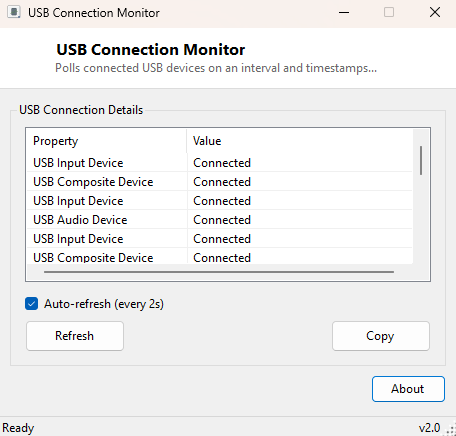
- Auto-refreshing list of all currently connected USB devices, every 3 seconds by default
- "Total USB Devices" count alongside the full listing
- "Last Scanned" timestamp so you always know how fresh the current view is
- Auto-refresh can be paused via checkbox without closing the window
- Manual Refresh for an immediate on-demand rescan
- Lightweight enough to leave running continuously in the background
Why You Might Need This Tool
The most practical use is confidence-checking during troubleshooting: plug in a flash drive, external SSD, or peripheral and watch this window to confirm Windows actually registered it, without needing to open File Explorer or Device Manager separately. It is also handy when working with USB hubs or docking stations that have a habit of silently dropping a device — leaving the monitor running lets you notice a device has disappeared from the list well before you would otherwise realize the peripheral stopped responding. For anyone testing hardware — verifying that a new USB card reader, hub, or adapter actually enumerates correctly under Windows — this gives an immediate, continuously updating confirmation rather than a manual re-check every time.
How It Works
On each refresh cycle, the tool queries Win32_PnPEntity through WMI
with a filter for DeviceID LIKE 'USB%', the same underlying query
technique used by several other tools in this catalog (USB Device Viewer and USB
Device Reset Tool among them) — the difference here is that the query re-runs
automatically on a timer rather than only on demand. Each returned device's
friendly name is added to the list along with a fixed "Connected" status, the
total count is tallied and displayed, and the current system time is stamped as
"Last Scanned." Because WMI queries against Win32_PnPEntity are
relatively lightweight, the tool can safely repeat this scan every three seconds
without a noticeable performance cost, which is what makes it practical to leave
running continuously rather than only checking it occasionally.
How to Use It
Launch the tool and the device list begins refreshing automatically — there is nothing to configure to get started. Leave it open in a corner of the screen while you plug and unplug devices to watch the list and count update in near real time. Untick "Auto-refresh" to freeze the current view if you want to read it without the list changing, and use the Refresh button for an immediate manual rescan while paused.
System Requirements & Notes
Runs on 64-bit Windows 10 and Windows 11 and requires no administrator rights — reading connected device information through WMI is a standard-user operation. Because this is a polling monitor rather than an event-driven listener, a device connected and disconnected entirely between two three-second refresh cycles could theoretically be missed; for guaranteed capture of every connect/disconnect event over time, USB Device History Viewer's registry-based approach is the more thorough option.
Frequently Asked Questions
Does this show devices that were connected in the past but are unplugged now?
No — this tool only shows what is currently connected at the moment of each scan.
For historical connection records, see USB Device History Viewer instead.
Can I change the refresh interval?
Not in this version — it refreshes on a fixed three-second cycle, chosen as a
balance between responsiveness and not over-polling WMI unnecessarily.
Will running this continuously slow down my PC?
No — the underlying WMI query is lightweight and the tool's own footprint is
minimal, so it is safe to leave running in the background indefinitely.