Overview
Every Windows user eventually hits the same wall: you try to delete, rename or move a file, and Windows refuses with "This action can't be completed because the file is open in another program." Half the time you have no idea which program that even is — it might be a background process, a stale handle left over from an application that crashed without releasing it properly, or an indexing service quietly scanning your files in the background. Unlocker exists to answer that question directly and then, if you want, solve it in the same window. Rather than guessing, closing programs one by one and trying again, Unlocker finds exactly which processes are holding a specific file open, lets you see them, and gives you a one-click way to close them and delete the file immediately afterward.
Key Features
- Finds every process currently holding a chosen file open, by name and process ID
- Uses the same official mechanism Windows itself relies on for this exact question
- One-click "Unlock (End Processes) & Delete" combines detection and cleanup in a single step
- No blind guessing — you see the real list of locking processes before anything is closed
- Works on files locked by crashed or unresponsive applications, not just healthy ones
- Lightweight, single-window interface with no background service
Why You Might Need This Tool
The most common trigger is an application that crashed or was force-closed without properly releasing a file it had open — the process itself may already be gone from the visible taskbar, but a lingering handle in a related background process (or the same process still technically running invisibly) keeps Windows Explorer from letting you touch the file. It also shows up constantly with log files, temporary export files, and media files that a player or editor keeps a handle open on even after you think you have closed it. Rather than rebooting your entire PC just to release one file — the classic, blunt workaround — Unlocker lets you close only the specific process responsible and keep everything else running normally.
How It Works
Unlocker is built directly on the Windows Restart Manager API — the same official
mechanism Windows Update and application installers use internally to figure out
which running programs need to close before a file can be safely replaced. The tool
calls RmStartSession to open a Restart Manager session, registers your
chosen file with RmRegisterResources, and then calls RmGetList
twice — first to find out how many processes are affected, then again with a properly
sized buffer to retrieve their process IDs and application names. Each returned process
ID is resolved back to a friendly process name using Process.GetProcessById
and listed in the results box. When you click "Unlock and Delete," those same processes
are terminated with Process.Kill() and given a brief moment to exit cleanly
before the tool attempts File.Delete on the now-unlocked file.
How to Use It
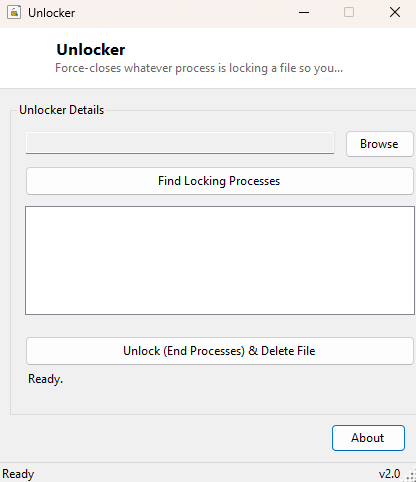
Click Browse and select the file that Windows is refusing to let you touch. Click Find Locking Processes and Unlocker will list every process currently holding it open — for a file that is not actually locked, this list will simply come back empty, confirming the problem lies elsewhere. If processes are found, click Unlock (End Processes) & Delete to close them and remove the file in one step, or note the process names first if you would rather close them manually and keep the file.
System Requirements & Notes
Unlocker runs on 64-bit Windows 10/11 and does not require administrator rights for files you own in your own user profile; files owned by another user account or located in a protected system folder may require running the tool elevated. Because ending a process discards any unsaved work in that program, always confirm you know what the locking process is doing before choosing to close it — Unlocker shows you the process name specifically so you can make that judgment call yourself.
Frequently Asked Questions
Is this safe to use on any file?
It is safe in the sense that it only closes processes actually holding that specific
file open — but closing a process always risks losing unsaved work in that program, so
review the process list before confirming.
What if no locking process is found but the file still won't delete?
That usually means the restriction is a permissions issue rather than a file lock —
check the file's read-only attribute with Attribute
Changer or your account's NTFS permissions instead.
How is this different from IObit Unlocker on this site?
They use the same underlying detection technique; IObit Unlocker streamlines the
workflow into a single combined action, while this tool shows the detection and
removal steps separately so you can review the process list first.