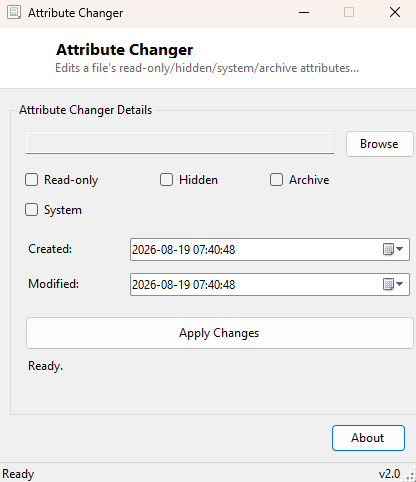
Overview
Every file on an NTFS or FAT volume carries a small set of attribute flags — Read-only, Hidden, System and Archive — alongside three separate timestamps for when it was created, last modified and last accessed. Windows Explorer lets you toggle Read-only and Hidden from a file's Properties dialog, but it does not expose the System flag at all, and it gives you no way whatsoever to directly edit a file's creation or modified date. Attribute Changer opens up all of that in one window: every standard attribute flag as a checkbox, and the creation and modified timestamps as editable date/time fields you can set to whatever value you need.
Key Features
- Toggle Read-only, Hidden, System and Archive independently
- Directly edit a file's creation timestamp
- Directly edit a file's last-modified timestamp
- Loads a file's current attributes and timestamps automatically on selection
- Applies every change in a single Apply action
- Works on individual files selected through a standard browse dialog
Why You Might Need This Tool
Correcting a mangled timestamp is the single most common reason people reach for this kind of tool — a bad copy operation, a restored backup, or a file transferred through certain older archive formats can leave a file's modified date showing the moment it was copied rather than when it was actually last edited, which throws off anything sorted by date, including photo organizers and backup software that relies on modification time to decide what changed. Attribute toggling has its own everyday uses too: marking a document Read-only as a lightweight guard against accidental edits, unhiding a file that got flagged Hidden by another program without your intent, or clearing the System flag on a file that was mistakenly marked that way and is now invisible even with hidden files shown.
How It Works
On selecting a file, the tool reads its current state with
IO.File.GetAttributes, checking the returned
FileAttributes flags enumeration against
ReadOnly, Hidden, Archive and
System individually to set each checkbox, and separately calls
IO.File.GetCreationTime and IO.File.GetLastWriteTime to
populate the two date pickers. Applying a change rebuilds the attribute flags from
scratch based on the checkboxes' current state and writes them back with a single
IO.File.SetAttributes call, then separately calls
IO.File.SetCreationTime and IO.File.SetLastWriteTime with
whatever values the date pickers hold. All four of these are standard .NET
filesystem APIs backed directly by the underlying Win32 file attribute and
timestamp calls — there is no special driver or low-level trick involved, just
direct, honest use of the same interfaces Windows Explorer itself calls internally.
How to Use It
Click Browse and select a file — its current attributes and timestamps load automatically. Adjust the checkboxes and/or date fields as needed, then click Apply Changes. The status message confirms success or reports the specific error if the file could not be modified.
System Requirements & Notes
Changing attributes or timestamps on files you own requires no special permissions; files in protected system locations may require administrator rights depending on their existing ACL. Setting the System or Hidden flag on a file can make it disappear from normal Explorer views — remember which files you have marked that way, since Attribute Changer itself does not maintain a history.
Frequently Asked Questions
Can I edit the "last accessed" timestamp too?
No — this version focuses on creation and modified time, the two timestamps that
actually matter for sorting and backup logic; last-accessed time is disabled by
default on most modern Windows installations for performance reasons and is rarely
meaningful.
Will setting Read-only actually prevent all edits?
It blocks accidental overwrites from most applications and Explorer itself, but it
is a soft flag, not real security — anyone with normal write access to the file can
clear it again in seconds, including through this same tool.
Does this work on folders as well as files?
This version targets individual files selected through the browse dialog; folder
attributes behave somewhat differently in Windows and are outside its current scope.