Overview
Traceroute Utility maps the complete hop-by-hop path your traffic takes to reach any destination on the internet, showing every router in between along with how long each hop takes to respond. A ping tool tells you whether a destination is reachable and how long the whole round trip takes; traceroute tells you exactly where along that path things slow down or stop working entirely — which is the difference between knowing "the internet is slow" and knowing "the problem starts three hops past my ISP's router."
This tool implements the same core technique Windows' own tracert
command uses, but presents each hop's IP address and response time in a clean,
continuously updating results window rather than raw console text.
Key Features
- Traces the complete hop-by-hop path to any hostname or IP address
- Shows the IP address and round-trip time for every intermediate router
- Automatically stops once the destination itself responds
- Reports timeouts per hop without aborting the entire trace
- Traces up to 30 hops, matching the standard traceroute convention
- Simple text output easy to copy into a support ticket or forum post
Why You Might Need This Tool
The most common use is diagnosing exactly where a connectivity problem lives when a website or service is slow or unreachable — is the delay happening on your own home network, inside your ISP, at an internet exchange point, or on the destination's own network? A trace that completes quickly for the first few hops and then times out consistently from a particular hop onward points squarely at that specific link in the chain, which is exactly the evidence an ISP support line will ask for when you report an outage. It is equally useful for confirming that a VPN or proxy is actually routing your traffic the way you expect, or for satisfying simple curiosity about how many networks your traffic crosses to reach a server on the other side of the world.
How It Works
Traceroute exploits a specific, well-documented behavior of the Internet Protocol:
every packet carries a Time To Live (TTL) field that a router decrements by one each
time it forwards the packet, and when that value reaches zero, the router that
dropped it sends back an ICMP "Time Exceeded" message identifying itself. This tool
sends a series of ICMP echo requests using System.Net.NetworkInformation.Ping,
starting with a PingOptions TTL of 1 and incrementing it by one on each
successive ping. The TTL-1 packet dies at the very first router, which reveals hop
one's address; the TTL-2 packet dies at the second router, revealing hop two; and so
on, until a packet's TTL is high enough to actually reach the destination, at which
point it responds normally and the trace completes. Each hop's response time is
measured the same way a normal ping measures round-trip time.
How to Use It
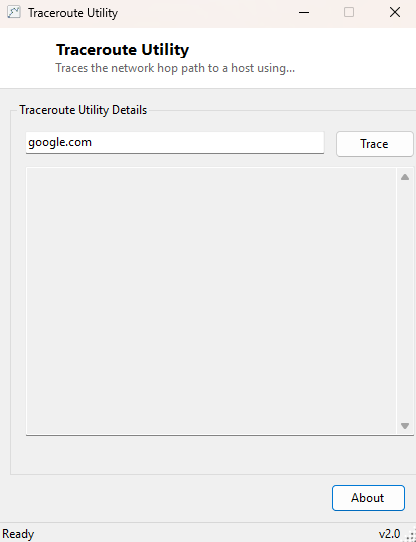
Type a hostname or IP address into the target field and click Trace. Results appear one hop at a time as they arrive, each line numbered with its hop count, responding IP address and round-trip time in milliseconds; a hop that does not respond within the timeout is shown as an asterisk rather than halting the whole trace, since some routers are configured not to respond to this technique even though they still forward traffic normally.
System Requirements & Notes
Traceroute Utility runs on 64-bit Windows 10 and Windows 11 and requires no
administrator rights — sending ICMP echo requests through the .NET
Ping class is a standard-user network operation. A trace can take up to
a minute to complete on a slow or heavily filtered path, since each hop is tested in
turn with its own timeout.
Frequently Asked Questions
Why does my trace show several asterisks in a row but still reach the destination?
Many routers, especially on ISP backbones, are deliberately configured to not reply
to the TTL-expiry messages traceroute relies on, even though they continue to forward
traffic normally — a string of timeouts followed by a successful final hop is
completely normal and does not indicate a problem.
Does a slow hop in the middle mean my internet is broken?
Not necessarily — some routers deprioritize generating the ICMP reply itself compared
to forwarding real traffic, so a single slow-looking hop in the middle of an otherwise
fast trace is usually cosmetic rather than a real bottleneck; a problem is more
credible when the delay or timeout persists from that hop all the way to the
destination.
Why does the same destination sometimes show a different path?
Large services and ISPs load-balance traffic across multiple routes, and routing
tables update as networks reconfigure, so seeing a slightly different hop sequence
on separate runs to the same destination is expected rather than a sign of a fault.