Overview
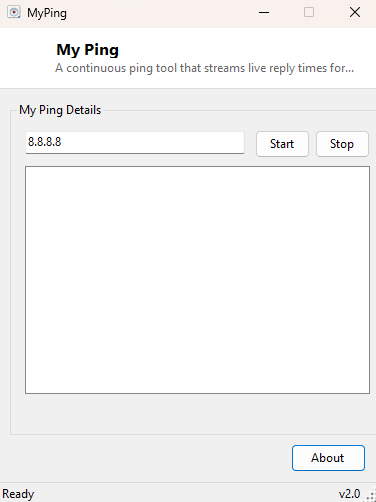
My Ping is a minimal, continuous single-host ping tracer — enter a host, click Start,
and watch a running log of reply times stream in once per second until you stop it.
The built-in Windows ping -t command does something similar from a
console window, but a console is easy to lose behind other windows and its output
scrolls past without any visual structure. My Ping keeps a compact, always-visible
list of numbered results with round-trip time and TTL for every reply, letting you
watch a connection's behavior over an extended period at a glance.
Where Ping Utility in this same catalog runs a fixed four-ping test and reports a summary, My Ping is built for open-ended, ongoing monitoring — start it and leave it running for as long as you need to watch a connection's stability.
Key Features
- Continuous ping to a single host, one request per second, until manually stopped
- Numbered, scrolling results list showing round-trip time and TTL for every reply
- Clear reporting of timeouts and other failure states alongside successful replies
- Start and Stop controls with no other configuration required
- Lightweight enough to leave running in the background indefinitely
Why You Might Need This Tool
Intermittent connection problems are notoriously hard to diagnose because they, by definition, are not happening the moment you go looking for them. Leaving My Ping running against a router, a game server, or a remote host you rely on lets you catch exactly when and how often a connection drops or spikes in latency, with a numbered sequence making it easy to describe the problem precisely afterward — "reply #47 through #52 all timed out" is a far more useful report to a network administrator or ISP support line than "it felt slow for a bit." It is equally useful during a long file transfer or video call, run alongside the main task as a simple connectivity sanity check.
How It Works
The tool wraps a single System.Net.NetworkInformation.Ping instance
behind a one-second Timer. On every tick, it sends one ICMP echo request
to the configured host with a two-second timeout, increments an internal sequence
counter, and appends a new line to the results list — either
#N Reply from <address>: time=<ms>ms TTL=<ttl> on
success, or the specific failure status (Timed Out, Destination Unreachable, etc.) on
failure. The list automatically scrolls to keep the newest entry visible. Because each
tick is independent and stateless beyond the running sequence counter, the tool can
run indefinitely without any memory or performance degradation over long monitoring
sessions.
How to Use It
Type the hostname or IP address you want to monitor into the input box (it defaults to a reliable public DNS address) and click Start. Results begin appearing immediately and continue once per second. Click Stop at any point to pause the stream — the existing results remain visible for review — or click Start again with a new host to begin monitoring something else.
System Requirements & Notes
Runs on 64-bit Windows 10 and Windows 11 and does not require administrator privileges. Some hosts and networks are configured to rate-limit or ignore repeated ICMP requests as a security measure; if replies stop entirely against a host that otherwise works fine in a browser, that host may simply be filtering ping traffic rather than genuinely being unreachable.
Frequently Asked Questions
How is this different from Ping Utility?
Ping Utility runs exactly four pings and reports a
summary with loss percentage; My Ping runs continuously until you stop it, built for
ongoing monitoring rather than a quick one-time check.
Can I monitor multiple hosts at once?
Not in this build — it is intentionally scoped to one host at a time for simplicity.
See Network Latency View for multi-host
monitoring with rolling averages.
Does the results list grow forever if I leave it running for hours?
The list will grow with the session, but each entry is a single lightweight line of
text, so even several hours of continuous pinging remains a small, manageable amount
of data.