Overview
The Trusted Platform Module became a household term almost overnight when Microsoft made TPM 2.0 a hard requirement for Windows 11, sending a huge number of PC owners scrambling to figure out whether their system even had a TPM chip, and if so, which specification version it implemented. TPM Version Checker reads the installed TPM's specification version directly from Windows' own security stack, answering exactly the question that Windows 11's own compatibility checker asks internally.
Key Features
- Reports the installed TPM's specification version (e.g. 1.2 or 2.0)
- Confirms whether a TPM is present at all before reporting further detail
- Reads directly from the same security WMI namespace Windows itself uses
Why You Might Need This Tool
Confirming TPM 2.0 presence and, just as importantly, confirming it is actually enabled rather than merely present but disabled in firmware, is the single most common blocker people run into when attempting a Windows 11 upgrade on hardware that is otherwise perfectly capable. Some motherboards ship with an onboard TPM chip disabled by default in UEFI settings, while others rely entirely on a firmware-based TPM (fTPM/PTT) that also needs to be explicitly turned on — this tool tells you immediately whether Windows currently sees a usable TPM at all, before you spend time hunting through an unfamiliar UEFI menu.
How It Works
The tool queries the Win32_Tpm class from the specialized
root\CIMV2\Security\MicrosoftTpm WMI namespace — a dedicated
security namespace separate from the general-purpose root\CIMV2
namespace most system-information tools use — reading the
SpecVersion, manufacturer identifier, and activation/enablement state
fields directly. This is the exact same namespace and class Windows' own
Get-Tpm PowerShell cmdlet and the Windows 11 PC Health Check tool query
internally.
How to Use It
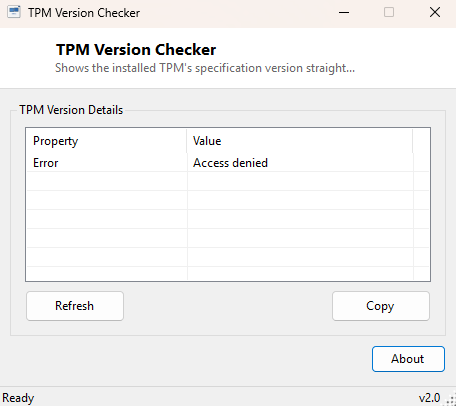
Open the program and TPM presence, specification version, manufacturer and activation state appear immediately, with no configuration needed.
System Requirements & Notes
Runs on 64-bit Windows 10/11 with no administrator rights required for reading basic TPM status; changing TPM settings themselves must be done through the UEFI firmware setup screen or, on domain-joined machines, may be governed by Group Policy.
Frequently Asked Questions
My tool reports no TPM present, but I know my CPU supports fTPM — why?
Firmware-based TPM (called fTPM on AMD systems and PTT on Intel systems) usually
ships disabled by default and must be explicitly enabled in your UEFI firmware
settings before Windows can see and report it.
Is TPM 1.2 enough for Windows 11?
No — Windows 11 specifically requires TPM 2.0; a system reporting TPM 1.2 will not
meet the official Windows 11 hardware requirement without a hardware or firmware
upgrade that provides 2.0 support.
Does having a TPM automatically mean BitLocker is enabled?
No — a TPM is a prerequisite that makes BitLocker possible and more secure, but
BitLocker itself must still be turned on separately; check
BitLocker Status Viewer for that.