Overview
Size is not the only signal that a file might be safe to archive or delete — age is often the more honest one. A 40 MB spreadsheet you touched yesterday obviously matters; a 40 MB spreadsheet nobody has opened in four years almost certainly does not, regardless of how small it is. Old File Finder scans a folder tree and reports every file whose last-modified timestamp is older than a threshold you choose, measured in days, giving you a straightforward way to surface genuinely stale data that has simply been sitting untouched, taking up space and cluttering search results, long after anyone needed it.
Key Features
- Recursive scan of an entire folder tree using the file's last-write timestamp
- Adjustable age threshold in days, from a week to many years
- Results sorted oldest-first, so the most neglected files surface immediately
- Shows full path and exact last-modified date for every match
- Returns up to 200 results per scan to keep large trees responsive
- Read-only — never modifies, touches, or deletes anything it finds
Why You Might Need This Tool
This tool earns its keep during periodic digital housekeeping — cleaning out a Downloads folder that has quietly become a graveyard of installers and PDFs from years ago, auditing a shared network drive where nobody is quite sure what is still actively used, or preparing an archive policy that only moves files nobody has touched in over a year to slower, cheaper storage. IT administrators use age-based scans like this to identify candidates for tiered storage or deletion policies without guessing; individual users use it far more casually, just to finally see what has been sitting in a project folder since a job that wrapped up long ago. Because it reports rather than acts, it is a safe first step before any actual cleanup — you get the full picture before you commit to deleting anything.
How It Works
Old File Finder walks the target folder recursively using
IO.Directory.EnumerateFiles with the AllDirectories
search option, the same lazy-streaming enumeration technique used across the
file-discovery tools in this catalog so memory stays flat even on very large trees.
For each file, a FileInfo object is constructed inside a try/catch so
inaccessible files are silently skipped rather than halting the scan, and its
LastWriteTime property is compared against a cutoff computed as
"now minus N days," where N is the value you entered. Matching files are collected,
sorted ascending by last-write time so the oldest appear first, and the first 200
results are rendered with their full path and a readable date. The tool
deliberately uses last-write time rather than creation time, because creation time
on Windows is frequently reset by copy operations, restores and cloud-sync tools in
ways that make it a much less reliable signal of genuine staleness than the
last-modified date.
How to Use It
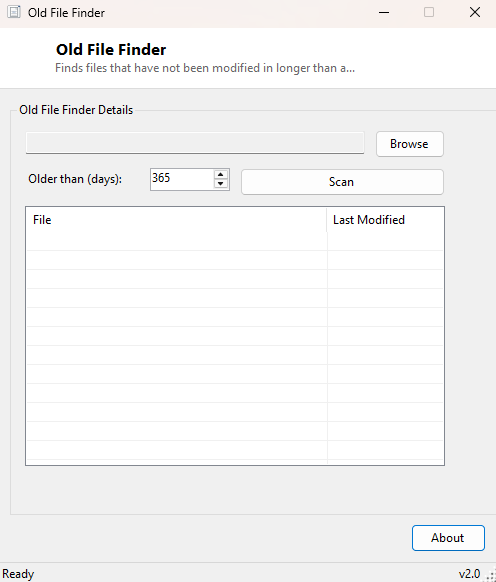
Click Browse to choose the folder or drive root you want to inspect. Set the "older than" field to the number of days you consider stale — 365 is a common starting point for a yearly cleanup pass, 730 or more for a more conservative archive policy. Click Scan and review the results, oldest first, before deciding what to move, archive or delete manually in Explorer.
System Requirements & Notes
Runs on 64-bit Windows 10/11 without requiring administrator rights for typical use, since it only reads file metadata and never writes to disk. Folders you lack read permission for are skipped rather than triggering an elevation prompt.
Frequently Asked Questions
Does "older than" use creation date or modified date?
Modified (last-write) date, deliberately, since creation date is often reset by
copies, cloud sync and system restores and does not reliably reflect when a file
was actually last used.
Will this find files I have only read but not edited recently?
Not directly — Windows does not reliably track last-access time by default on most
modern systems, so this tool intentionally relies on the more dependable
last-modified timestamp instead.
Can I combine age and size filtering?
Not in a single pass today; run Large File
Finder and Old File Finder separately and cross-reference the two lists for
files that are both old and large — usually the strongest cleanup candidates.