Overview
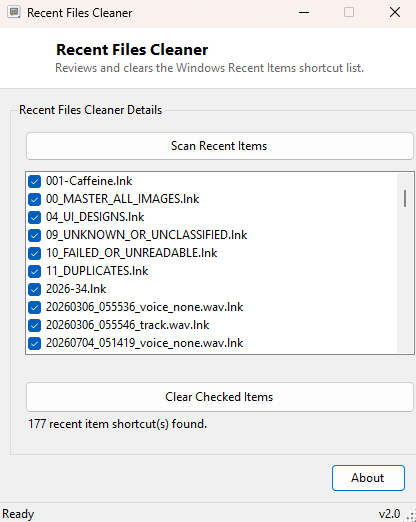
Every time you open a document, spreadsheet, image or almost any other file type through its associated application, Windows quietly drops a shortcut into your Recent Items list — the same list that powers "Recent Files" in the Start menu and the jump-list history many taskbar icons show when you right-click them. It is a genuinely convenient feature for quickly reopening something you were just working on, but it is also a running, largely invisible log of exactly what you have opened, which is not something everyone wants sitting around indefinitely — especially on a shared computer, before handing a laptop to IT support, or simply as routine tidiness. Recent Files Cleaner gives you a direct view of that list and lets you clear it, selectively or entirely, in a few clicks.
Key Features
- Scans and lists every shortcut currently in the Windows Recent Items folder
- Select individual entries to remove, or clear the entire list at once
- Shows the exact shortcut file name for each entry before you decide
- Rescans automatically after a clean so the list always reflects current state
- Only touches the Recent Items shortcuts — never the original files themselves
- Simple checklist interface, no confusing bulk-selection modes to learn
Why You Might Need This Tool
The Recent Items list is one of the more overlooked sources of a "digital trail" on a Windows PC, and clearing it comes up in several ordinary situations: preparing a machine to be handed off to someone else, cleaning up after finishing a sensitive piece of work (tax documents, HR files, anything you would rather not have listed by name in a jump list later), or simply wanting the Start menu's recent-files section to stop showing an old project you have already finished. Because the list can also grow into the hundreds of entries over months of regular use, periodically clearing it is also a reasonable bit of routine housekeeping even with nothing specifically sensitive involved.
How It Works
Windows maintains the Recent Items list as a folder of small .lnk
shortcut files, located at the path returned by
Environment.GetFolderPath(Environment.SpecialFolder.Recent) — this is
the exact same special folder both the Start menu's recent-files view and File
Explorer's Quick Access recent list draw from. The tool enumerates every file in
that folder with IO.Directory.GetFiles() and lists each shortcut's
file name in a checked list, defaulting every entry to checked. Clicking
Clear Checked Items simply calls IO.File.Delete() on
each selected shortcut file — since these are just pointer files, deleting them
removes the entry from Recent Items instantly without touching, moving, or altering
the original document each shortcut pointed to in any way.
How to Use It
Launch the tool and every current Recent Items entry appears in the list, all checked by default. Uncheck any entries you want to keep, or leave everything checked to clear the whole list, then click Clear Checked Items. The list refreshes immediately afterward so you can confirm the removal took effect.
System Requirements & Notes
Recent Files Cleaner runs on 64-bit Windows 10 and 11 and requires no administrator rights, since the Recent Items folder is a per-user location the current account always has full write access to. It only deletes shortcut files inside that special folder — it never deletes, moves, or modifies the actual documents those shortcuts point to.
Frequently Asked Questions
Will clearing Recent Items delete my actual files?
No. Recent Items entries are shortcut pointers, not the files themselves — clearing
the list only removes the pointers. Every original document, image or spreadsheet
stays exactly where it was.
Does this also clear jump lists on the taskbar?
Not directly — taskbar jump lists are built from a related but separate set of
files. See Jump Lists View if you specifically
need to inspect that data.