Overview
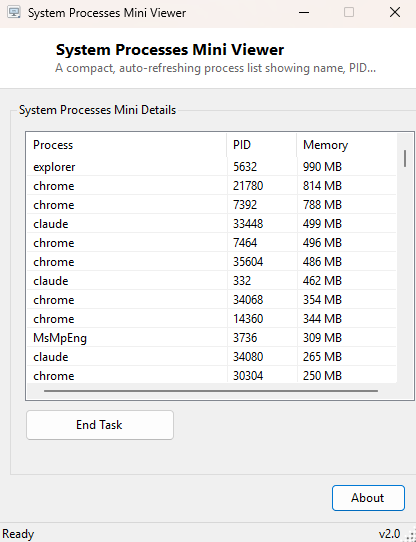
System Processes Mini Viewer is a stripped-down, auto-refreshing process list for the moments Task Manager feels like too much tool for too small a question. It shows just three things — process name, process ID and memory usage — sorted by memory consumption, refreshed automatically every few seconds, with a single End Task button for the rare occasion you actually need to kill something. There are no tabs, no performance graphs, no startup-impact ratings; just the flat list most people actually look at Task Manager's Processes tab for in the first place.
Key Features
- Lists every running process with name, PID and working-set memory usage
- Sorted by memory usage, highest first, so the biggest consumers are always at the top
- Auto-refreshes on a timer without any manual action required
- Preserves your current selection across refreshes rather than resetting the list view
- One-click End Task for the selected process
- Opens and loads near-instantly compared to Task Manager's full interface
Why You Might Need This Tool
Task Manager has grown considerably more elaborate over the years, and while that extra detail is valuable when you need it, it is genuinely unnecessary overhead for the common case of "what is using all my memory right now, and can I close it." This tool answers exactly that question, faster, and stays out of the way otherwise. It is also a convenient lightweight companion to leave open in the corner of a screen while working on something memory-intensive, glancing at it periodically without needing to Alt-Tab into a full Task Manager window and navigate to the right tab each time.
How It Works
On each timer tick (every three seconds by default), the tool calls
Process.GetProcesses() to enumerate every running process, reads each
one's WorkingSet64 property to get its current physical memory usage in
bytes, converts that to megabytes for display, and sorts the resulting list in
descending order before repopulating the view. To avoid the annoying experience of
your selected row jumping around every refresh, the tool remembers the currently
selected process's ID before rebuilding the list and re-selects the matching entry
afterward if it is still present. The End Task button simply calls
Process.GetProcessById for the selected PID followed by
.Kill(), the same underlying mechanism Task Manager's own "End Task"
button uses.
How to Use It
Launch the tool and the process list appears immediately, refreshing on its own from then on. Click any row to select it, then click End Task if you need to force-close that process — there is no confirmation dialog, so use this deliberately rather than experimentally.
System Requirements & Notes
Runs on 64-bit Windows 10 and Windows 11. No administrator rights are required to view the list, but ending certain system or elevated processes will fail with an access- denied error unless the tool itself is run as Administrator — the same restriction Task Manager is subject to.
Frequently Asked Questions
Can I sort the list by name or PID instead of memory?
Not in this version — it is intentionally fixed to memory-descending order, since that
is the sort order most people actually want when checking what is consuming resources.
Is ending a process here the same as ending it in Task Manager?
Yes — both call the same underlying Windows process-termination mechanism, so the same
cautions apply: ending a process immediately, without giving it a chance to save
unsaved work, exactly as Task Manager's End Task does.