Overview
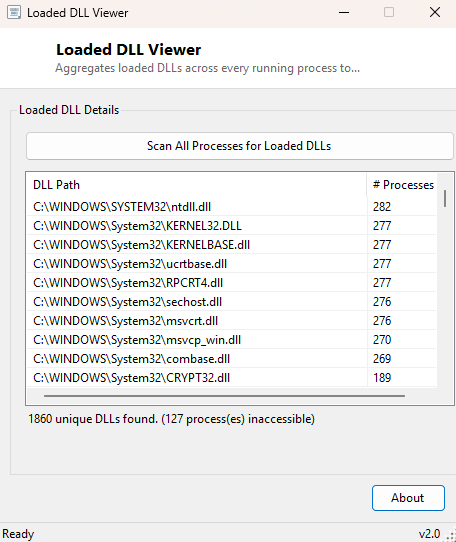
Loaded DLL Viewer answers a system-wide question no single-process tool can: across every running process on your PC right now, which DLLs are loaded the most widely? Rather than inspecting one process's module list at a time, it scans every accessible process, tallies how many separate processes have each distinct DLL file path loaded, and presents the result sorted by that count — instantly surfacing the handful of core system libraries, shared runtimes, and security or monitoring software components that quietly touch nearly everything running on the machine.
Key Features
- Aggregates loaded DLLs across every running process in a single scan
- Ranks results by how many distinct processes have each DLL loaded
- Shows the top 150 most widely-shared modules to keep the list manageable
- Reports how many processes could not be inspected due to access restrictions
- One-click rescan to capture a fresh snapshot at any time
Why You Might Need This Tool
This kind of system-wide view is genuinely useful in a few specific situations: after installing new security or monitoring software, confirming exactly how broadly its hooking or injection components have spread across your running processes; identifying which shared runtime libraries (a particular version of a .NET, Visual C++, or similar redistributable) are actually in active use system-wide before deciding whether it is safe to remove an old version; or general low-level curiosity about what is quietly common to nearly every process on a modern Windows system, which is often a longer and more surprising list than people expect.
How It Works
The tool calls Process.GetProcesses() to enumerate every running process,
then for each one attempts to read its Modules collection — the same
per-process module list Opened Files View exposes for a single chosen process — wrapped
in error handling, since inspecting another user's or an elevated process's modules
without matching privileges will correctly throw an access-denied exception rather than
silently returning nothing. Every successfully-read module's full file path is used as
a key in a running dictionary that counts occurrences; a path seen in five different
processes' module lists ends up with a count of five. After scanning every accessible
process, the dictionary is sorted by count in descending order and the top 150 entries
are displayed, alongside a summary line reporting how many processes could not be
inspected due to access restrictions, so the results are presented honestly rather than
implying complete system coverage when some processes were necessarily skipped.
How to Use It
Launch the tool and the full system scan runs automatically on startup — on a busy system with many running processes this can take a few seconds, since every accessible process's module list must be read individually. Click Refresh at any time to capture an updated snapshot.
System Requirements & Notes
Runs on 64-bit Windows 10 and Windows 11 without requiring administrator rights, though running elevated will allow it to successfully inspect additional higher-privilege processes that a standard-user scan cannot access, producing a more complete result.
Frequently Asked Questions
Why does the "processes inaccessible" count never reach zero?
Certain system and security-related processes are protected against inspection even by
an administrator account, by Windows design — a nonzero inaccessible count is normal
and does not indicate a fault in the tool.
Will this tool show me malware hiding in my system?
It can be one useful signal — a DLL loaded unexpectedly across a very large number of
unrelated processes is worth investigating — but it is a general diagnostic view, not
a dedicated security or malware-detection tool, and should not be relied on as one.