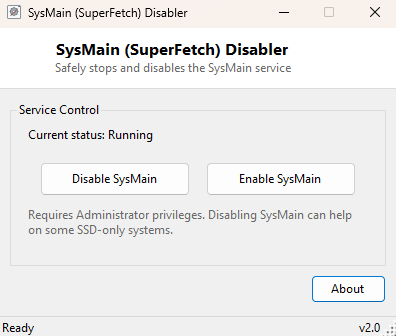
Overview
SuperFetch / SysMain Disabler targets one specific, frequently-recommended Windows tweak and does it cleanly: stopping and disabling the SysMain service (still commonly called by its older name, SuperFetch). This background service pre-loads frequently used applications into RAM to make them launch faster on traditional spinning hard drives, but on many SSD-only systems it can generate constant background disk activity with little practical benefit, since SSDs are already fast enough that the caching advantage barely registers while the read/write overhead itself is real.
This tool exists specifically because the usual way to make this change — opening Services.msc, finding SysMain in a long alphabetical list, and manually changing both its state and its startup type — is more clicking than the actual decision deserves. It also makes reverting the change equally simple, since disabling SysMain is not universally beneficial and some systems genuinely do better with it left running.
Key Features
- Shows the SysMain service's current running status on launch
- One-click "Disable SysMain" that both stops the service and sets its startup type to disabled
- One-click "Enable SysMain" that reverses the change completely
- Automatically refreshes status after every action so you can confirm the change took effect
- Clear on-screen note that changes require Administrator privileges
- No hidden or additional tweaks — this tool touches exactly one service and nothing else
Why You Might Need This Tool
This tweak shows up constantly in SSD optimization guides, and for good reason on many systems — disabling a service that exists primarily to compensate for slow mechanical hard drives makes intuitive sense once your primary drive is already fast. That said, results genuinely vary: some users report noticeably reduced background disk activity and slightly snappier application launches after disabling it, while others notice no difference at all, or occasionally prefer it left on for systems that still have a mix of SSD and mechanical storage. This tool exists to make testing that tradeoff for yourself trivially easy in both directions, rather than committing to a guide's recommendation you cannot easily undo.
How It Works
The tool reads current service state using .NET's
ServiceController class targeting the "SysMain" service name. Applying a
change runs two elevated sc.exe commands in sequence through
Process.Start with the process's Verb set to
"runas", which triggers the standard Windows UAC elevation prompt: first
sc config SysMain start= disabled to prevent it starting on the next boot,
then sc stop SysMain to stop it running immediately rather than waiting
for a restart. Re-enabling reverses both steps — setting the start type back to
automatic, then starting the service again — so the tool never leaves the system in a
half-changed state.
How to Use It
Launch the tool and its status line shows SysMain's current state. Click Disable SysMain and accept the UAC prompt when Windows asks for elevation; the status line updates automatically once the change completes. If you later want the service back, click Enable SysMain and accept the elevation prompt again — the process is exactly symmetrical in both directions.
System Requirements & Notes
Runs on 64-bit Windows 10 and Windows 11. Reading the current service status does not require elevation, but actually changing it does — both the Disable and Enable actions trigger a standard UAC prompt, and declining that prompt simply leaves the service state unchanged.
Frequently Asked Questions
Is disabling SysMain safe?
Yes — SysMain is a caching convenience service, not a component Windows depends on
for core functionality. Disabling it will not cause instability, only a change (for
better or worse, depending on your hardware) in how quickly frequently used
applications launch.
Will this improve performance on a hard-drive-based system?
Probably not — SysMain's caching behavior was specifically designed to help mechanical
drives, so disabling it is generally recommended only for SSD-only systems.
Why does it need Administrator rights?
Changing a Windows service's startup configuration is a privileged operation by
design, to prevent unprivileged software from silently disabling system services.