Overview
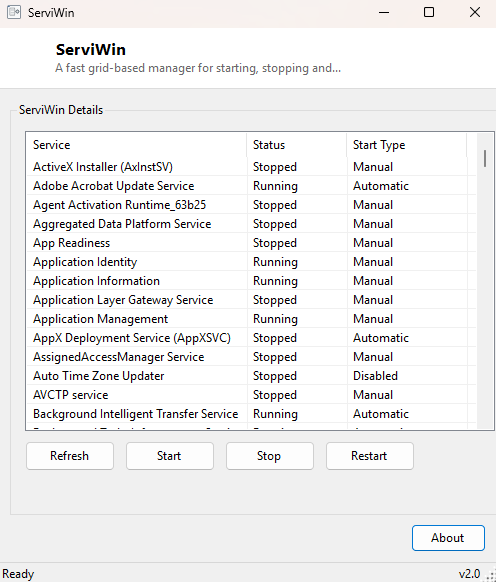
ServiWin is a fast, grid-based replacement for the moment you actually need to poke at a Windows service. The built-in Services console (services.msc) is a Microsoft Management Console snap-in, and MMC snap-ins load slowly, bury the controls you want behind right-click context menus, and refresh their list only when you tell them to. ServiWin strips all of that away: open it, and every service on the machine is already laid out in a sortable table with its display name, current status and configured start type, ready for a one-click start, stop or restart.
This is one of the smallest and most frequently reached-for tools in the entire Productivity Tools category, precisely because "restart this one stuck service" is such a common troubleshooting step and the standard Windows path to doing it is surprisingly slow for how often it comes up.
Key Features
- Complete list of every Windows service, sorted alphabetically by display name
- Status and configured start type shown side-by-side for every entry
- One-click Start, Stop and Restart, with Restart correctly waiting for a full stop before starting again
- Manual Refresh to re-poll current status without relaunching the tool
- No filtering menus or nested dialogs — the entire interface is one table and three buttons
- Loads instantly, with no snap-in initialization delay
Why You Might Need This Tool
Services get stuck far more often than most people expect. A print spooler that silently stops responding after a driver hiccup, a background sync agent that needs a kick after a network change, a database or web server you manage locally that needs a quick restart after a config edit — all of these are one-click fixes in principle, but the standard Services console adds friction at every step: waiting for the MMC console to load, scrolling to find the right service among 150+ Windows and third-party entries, then navigating a right-click menu just to hit Restart. ServiWin removes every one of those steps. It is also useful simply as a status board — sorting by the Status column instantly shows you every service that is currently stopped, which is a fast way to spot something that silently failed to start after the last reboot.
How It Works
ServiWin is built entirely on the .NET System.ServiceProcess.ServiceController
class, the same managed wrapper around the Windows Service Control Manager (SCM) that
PowerShell's Get-Service and Restart-Service cmdlets use
internally. On launch, it calls ServiceController.GetServices() to enumerate
every registered service and populates the grid with each one's
DisplayName, Status and StartType properties.
When you click Start, Stop or Restart, it opens a fresh ServiceController
instance for that specific service (identified internally by its short
ServiceName, stored alongside the visible row) and calls the matching
method — .Start(), .Stop(), or for Restart, a
.Stop() followed by WaitForStatus(ServiceControllerStatus.Stopped, ...)
and then .Start() — before refreshing the entire grid to reflect the new
state.
How to Use It
Launch ServiWin and the full service list appears immediately. Click any column header to sort by name, status or start type. Select the service you need to act on and click Start, Stop or Restart; a message box appears if the action fails, most commonly because the process was not run elevated. Click Refresh at any time to re-poll current status without closing and reopening the tool.
System Requirements & Notes
Viewing the service list requires no special privileges, but starting, stopping or restarting most services requires Administrator rights — Windows will report a failure for a protected or system-critical service if ServiWin is not running elevated. A small number of core Windows services also refuse to stop even under an administrator account, which is expected Windows behavior, not a bug in this tool.
Frequently Asked Questions
Why did my restart attempt fail with an access-denied error?
Re-launch ServiWin as Administrator. Most service state changes require elevation, and
Windows reports that as a generic access error rather than naming the missing privilege.
Can I change a service's startup type (Automatic/Manual/Disabled)?
Not in this version — ServiWin focuses on the day-to-day start/stop/restart workflow.
Startup type changes still need the Services console or sc config.
Does it show third-party and driver services too?
Yes — it enumerates everything the Service Control Manager knows about, exactly like
services.msc, including third-party application services and non-Microsoft drivers.