Overview
Caffeine is a small tray utility with one job: keep your PC awake. Windows is normally very eager to dim the display, lock the screen and eventually suspend itself the moment it thinks you have stepped away, and most of the time that is exactly the right behavior. The problem is the handful of situations where it is absolutely the wrong behavior — a two-hour file transfer, a slide deck you are presenting from a laptop on battery, a long render job, a video call where the presenter's screen keeps timing out mid-sentence. Caffeine exists for exactly those moments. Click one button, and Windows stops trying to sleep until you tell it otherwise.
The name is a deliberate homage to the original community tool of the same idea that has existed in one form or another since the early Windows 7 era — this is a clean, modern .NET reimplementation built specifically for this catalog, using the same underlying Windows API technique but wrapped in a slightly friendlier interface with an explicit "also keep the display on" option rather than forcing that behavior all the time.
Key Features
- One-click toggle between normal sleep behavior and "stay awake" mode
- Optional setting to keep only the system awake while allowing the display to turn off
- Minimizes to the system tray with a status icon showing whether it is active
- Restores normal power management automatically when you close the program
- No background service — Caffeine only affects sleep behavior while it is actually running
- No configuration files, no registry changes, nothing left behind after you close it
Why You Might Need This Tool
The most common use case is exactly what it sounds like: something is running that will take a while, and you cannot afford for the screen to lock or the machine to suspend partway through. Long downloads and uploads, video exports, large file copies to a network share, and unattended backups are the classic examples — all of them are the kind of task where a mid-way sleep does not just pause progress, it can silently break the whole operation. Presenters get a second, equally common use case: plugging a laptop into a projector only to watch Windows lock the screen two minutes into a demo because it does not realize an external display counts as "being used." Caffeine's job in both cases is the same — stay out of the way, override exactly one piece of default behavior, and do nothing else.
How It Works
Caffeine does not simulate a key press or move the mouse the way some older
"wiggler" scripts do — that approach can interfere with whatever else you are
doing and does not reliably stop sleep in all circumstances. Instead it calls the
Windows SetThreadExecutionState API directly, the same official
mechanism Windows itself expects well-behaved applications (like video players and
backup software) to use when they genuinely need to prevent sleep. Setting the
ES_SYSTEM_REQUIRED flag tells Windows the system should stay awake;
adding ES_DISPLAY_REQUIRED, controlled by the "also keep display on"
checkbox, extends that to the monitor as well. A background timer refreshes this
request roughly every thirty seconds while active, since the flag needs to be
reasserted periodically rather than set once and forgotten. The moment you toggle
Caffeine off, close the window, or the process exits for any reason, that state is
explicitly cleared, so Windows' normal power management resumes immediately — there
is no scenario where closing Caffeine leaves your PC stuck awake.
How to Use It
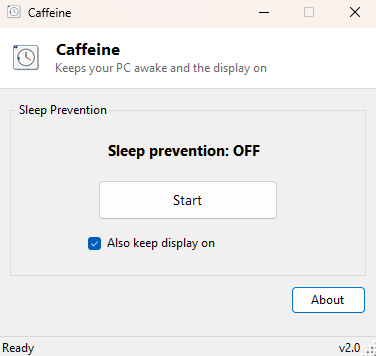
Launch Caffeine and click Start. The button label changes to Stop and a tray icon appears confirming it is active — that is the entire interaction. Tick "Also keep display on" first if you specifically need the monitor to stay lit as well as the system awake (useful for presentations; usually unnecessary for a background transfer where you do not care if the screen dims). When you are done, click Stop or simply close the window; either action immediately restores Windows' normal sleep and screen-lock timers.
System Requirements & Notes
Caffeine runs on 64-bit Windows 10 and Windows 11 and requires no administrator privileges — preventing sleep through the official API is a standard-user operation, not a system-level change, so nothing about this tool touches the registry, Group Policy, or your power plan settings. It has no effect on Windows Update forced restarts, which operate outside normal sleep/idle logic by design.
Frequently Asked Questions
Does Caffeine keep running after I close it?
No. It is not a background service and installs nothing that survives after the
window is closed. Once it exits, Windows' normal sleep timers apply immediately.
Will this stop my laptop from sleeping when I close the lid?
No — closing the lid is a separate hardware event Windows handles independently of
the idle-timeout sleep that Caffeine overrides. For lid-close behavior, check your
Windows power plan's "when I close the lid" setting instead.
Is there a lighter version with fewer options?
Yes — see No Sleep Caffeine Mini, which
strips this same technique down to a single button with no tray icon at all.