Overview
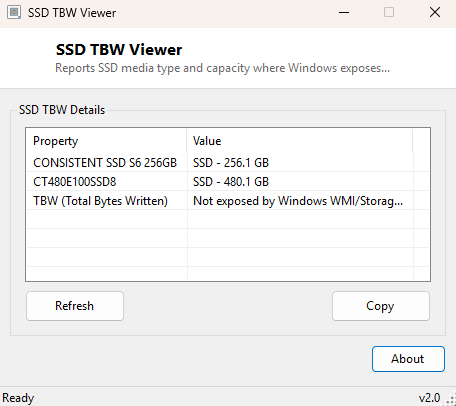
TBW — Total Bytes Written — is the industry metric SSD manufacturers use to rate endurance: a drive rated for 600 TBW is warrantied to accept 600 terabytes of total writes over its lifetime before wear-out becomes a real concern. SSD TBW Viewer starts from a place of honesty about what it can and cannot tell you: it correctly identifies which of your attached drives are solid-state versus traditional spinning media and reports their capacity, but genuine live TBW/endurance counter data is locked behind vendor-specific SMART attributes that Windows' standard storage APIs do not expose. This tool tells you exactly that, rather than displaying a fabricated number.
Key Features
- Correctly classifies each physical disk as SSD or non-SSD media
- Reports each drive's friendly name and total capacity in gigabytes
- Explains precisely why live TBW/endurance data is not shown, and what would be required to read it
- Works across all SSD form factors — 2.5" SATA, M.2 SATA and M.2 NVMe
- No admin rights, no third-party driver installation
Why You Might Need This Tool
The most common reason to open this tool is a quick inventory pass — confirming which drives in a multi-disk system are solid-state before deciding where to install an operating system or a frequently-written database or cache folder, since placing heavy write workloads on a drive nearing its endurance limit is worth avoiding when you have a choice. It also serves as an honest starting point before reaching for a heavier vendor tool: Samsung Magician, Crucial Storage Executive, WD Dashboard and similar manufacturer utilities can read the real TBW/wear counter directly from their own drives' proprietary SMART attributes (typically attribute 241 or 242 depending on controller vendor), but they only work with that one manufacturer's drives. This tool at least confirms media type and capacity universally, across any brand, before you go looking for the vendor-specific tool that can go further.
How It Works
The tool queries MSFT_PhysicalDisk in the
root\Microsoft\Windows\Storage WMI namespace, checking whether the
MediaType field equals 4 (the documented value for solid-state media)
and reading the Size field for raw capacity, converted to a
human-readable gigabyte figure. Genuine total-bytes-written data lives in SMART
attribute 241 (Total_LBAs_Written) or 242 (Total_LBAs_Read) on most controllers, or in
NVMe's standardized Data Units Written log page — but reading either requires sending
raw ATA or NVMe pass-through commands directly to the drive via
DeviceIoControl, which is exactly the kind of low-level, drive-specific,
potentially destabilizing direct hardware access this catalog's tools deliberately
avoid unless the benefit clearly outweighs the risk. The tool states this limitation
explicitly in its output rather than presenting an invented wear percentage as fact.
How to Use It
Launch the tool and every physical disk appears with its name, a clear SSD/Not SSD classification, and capacity in gigabytes. For drives correctly identified as SSD where you need actual TBW/endurance figures, use that manufacturer's official dashboard utility, which can read the real counter directly from the drive's controller.
System Requirements & Notes
Runs on 64-bit Windows 10 and Windows 11, no administrator rights required for the media-type and capacity query this tool performs.
Frequently Asked Questions
Why can't this tool just show TBW like CrystalDiskInfo does?
Tools that show real wear data read raw SMART attributes via direct ATA/NVMe
pass-through commands sent to the physical drive, bypassing the standard storage
APIs this catalog's tools rely on. That is a deliberate scope decision for this
utility, not a technical dead end — Drive SMART
Viewer elsewhere in this catalog does decode raw SMART attribute data where it is
available.
Is SSD wear something I should actually worry about?
For most consumer workloads, no — modern SSDs are typically rated for hundreds of
terabytes of writes, far beyond what a typical desktop user generates over the
drive's realistic useful lifetime. It matters more for write-heavy server or
enterprise workloads.