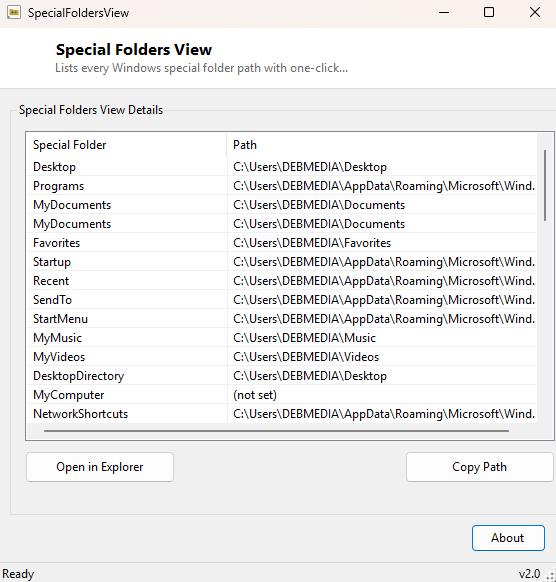
Overview
Windows scatters dozens of important folders across the file system — AppData,
Local, LocalLow, Roaming, Temp, Startup, the per-user Documents and Pictures
libraries, and many more — and hides most of them behind environment variables
and hidden-folder settings that ordinary Explorer navigation makes tedious to
reach. Special Folders View exists to remove that friction entirely. It queries
every value defined in the .NET Environment.SpecialFolder enumeration,
resolves each one to its actual path on your specific machine, and lists all of
them in a single sortable, resizable window with a one-click "open in Explorer"
action for any entry you select.
This is the kind of tool that earns its place on a taskbar shortcut rather than
getting used once and forgotten. Anyone who does support work, writes installer
scripts, debugs a misbehaving application's config files, or simply wants to find
where a program actually stores its settings will end up typing
%appdata% or %localappdata% into the Run dialog from
memory sooner or later — Special Folders View turns that memorized-path guessing
game into a searchable list you can browse visually instead.
Key Features
- Lists every value in the Environment.SpecialFolder enumeration with its resolved path
- Clearly flags folders that are not set on this particular system rather than showing a blank
- One click opens the selected folder directly in a new Windows Explorer window
- One click copies the selected folder's full path to the clipboard
- Resizable, sortable list view for quickly scanning a long folder set
- Read-only and completely non-destructive — it never creates, moves or deletes anything
Why You Might Need This Tool
The most common reason to reach for this tool is troubleshooting: an application is misbehaving, and the fix involves deleting or inspecting a cache, settings file or log that lives somewhere under AppData — but AppData itself is hidden by default in Explorer, and remembering whether a specific setting lives under Roaming or Local (a distinction that matters for roaming user profiles in managed environments) is not something most people keep memorized. A second common scenario is scripting or documentation work — writing an installer, a batch file, or internal IT documentation that needs to reference exact folder paths without guessing at environment-variable syntax. A third is simple curiosity after reading about a security advisory or malware report that references a specific special folder by name; being able to jump straight there and look around removes any ambiguity about exactly which folder is meant.
How It Works
The application iterates over every named value in .NET's built-in
Environment.SpecialFolder enum using reflection
([Enum].GetValues(GetType(Environment.SpecialFolder))), and for each
one calls Environment.GetFolderPath to resolve the actual path on the
running machine. This is the same underlying mechanism Windows itself uses
internally — it ultimately resolves through the Windows Known Folder system — so
the paths shown are guaranteed accurate for the current user and current Windows
version rather than hard-coded guesses that might be wrong on a non-default
installation or a machine with a relocated user profile. When
GetFolderPath returns an empty string for a folder that genuinely does
not apply on this system (some special folders are legacy values tied to older
Windows shell versions and simply resolve to nothing on modern Windows), the tool
marks that entry as "(not set)" instead of silently showing a blank row, so you can
immediately tell the difference between "this folder is empty" and "this folder
concept doesn't apply here."
How to Use It
Launch the tool and the full list populates immediately — there is no scan delay since every value comes directly from a fast built-in API call. Click any column header to sort by folder name or by path. Select a row and click Open in Explorer to launch a new Explorer window at that exact location, or click Copy Path to place the full path on the clipboard for pasting into a script, a support ticket, or a command prompt.
System Requirements & Notes
Special Folders View runs on 64-bit Windows 10 and Windows 11 and does not require administrator privileges — reading known-folder paths and opening Explorer are both standard-user operations. The tool makes no changes to the file system, the registry, or Explorer settings at any point.
Frequently Asked Questions
Why do some folders show "(not set)"?
A handful of values in the SpecialFolder enum are legacy concepts from older
Windows shell versions (some tied to Windows XP-era folder structures) that simply
have no equivalent on modern Windows. The tool reports this honestly rather than
guessing at a path.
Does this show hidden folders that Explorer normally hides?
Yes — folders like AppData are hidden by default in Explorer's view settings, but
Special Folders View opens them directly regardless of that setting, since it
launches Explorer at an explicit path rather than relying on visible browsing.
Can I add my own custom folder shortcuts to the list?
No — the list is intentionally limited to the official Windows-defined special
folders. For a general-purpose bookmark tool, a different utility would be a
better fit; this one stays scoped to the folders Windows itself recognizes.