Overview
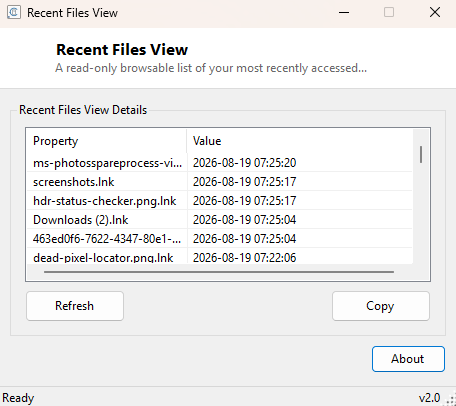
Recent Files View is a simple, read-only browsable list of the files Windows has recently recorded you opening, sorted with the most recently accessed item first. It exists as a clean way to glance back at recent activity without opening the Start menu's own jump lists one application at a time, or wading through File Explorer's Quick Access view with its mix of pinned and recent items tangled together.
Key Features
- Lists up to the 50 most recently accessed files, most recent first
- Shows the exact last-accessed timestamp for each entry
- Purely read-only — nothing here can be accidentally deleted or altered
- Reads the same underlying Windows Recent Items data other apps rely on
- Loads instantly with no scanning delay
Why You Might Need This Tool
The most common use is simply reconstructing "what was I working on" after a break, restart, or context switch between projects — a fast chronological list is often quicker to scan than reopening several applications individually to check their own recent-file menus. It is also a useful lightweight companion to Recent Files Cleaner: review exactly what's in the list here first, then use that companion tool if you decide specific entries should be cleared for privacy reasons.
How It Works
The tool reads directly from the Windows-managed "Recent" special folder — obtained via
Environment.GetFolderPath(Environment.SpecialFolder.Recent) — which is the
same folder of shortcut (.lnk) files Windows itself populates every time you open a
document, image or other file type it tracks. It enumerates every file in that folder
with IO.Directory.GetFiles, wraps each one in a FileInfo object
to read its LastWriteTime, sorts the resulting list with LINQ's
OrderByDescending so the most recently touched shortcut appears first, and
displays the top 50 results with their name and formatted timestamp. Because it only reads
from this folder and never writes to or deletes from it, the tool cannot accidentally
modify your actual recent-files history — that's a deliberate design choice keeping it
strictly separate from the cleanup tool.
How to Use It
Simply launch the tool — the list populates automatically and requires no interaction beyond scrolling to browse. There is no built-in way to open a listed file directly from this tool since it is intentionally read-only; use it as a reference to locate an item, then open it normally from wherever it actually lives.
System Requirements & Notes
No administrator rights are required — the Recent Items folder is a standard per-user location. The list only reflects files Windows itself chose to track, which depends on the application used to open them; not every program registers its file opens with the shell's recent-documents tracking.
Frequently Asked Questions
Can I delete an entry from here?
No — this tool is deliberately read-only. Use
Recent Files Cleaner if you want to selectively
clear entries from the same underlying list.
Why is a file I definitely opened recently missing from the list?
Not every application registers its file-open events with Windows' shell-level recent
documents tracking — some apps maintain their own separate "recent files" list internally
instead, which this tool has no visibility into.