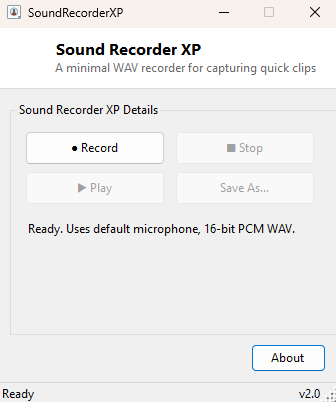
Overview
Modern Windows quietly retired the simple, no-frills Sound Recorder that used to ship with every version of the OS up through Windows XP, replacing it with the more feature-rich but heavier Voice Recorder app. SoundRecorderXP brings that older, simpler workflow back — open it, hit record, hit stop, and you have a clean WAV file, with no cloud sync, no automatic transcription, and no unnecessary UI standing between you and a quick audio capture from your default microphone.
Key Features
- One-click record, stop and play controls with clear visual state (● Record / ■ Stop / ▶ Play)
- Records standard 16-bit PCM WAV audio from the system's default recording device
- Instant playback of the last recording without leaving the app
- Save As dialog to copy the recording to a permanent location and filename of your choice
- No background service, no cloud upload, no telemetry — audio never leaves your machine unless you explicitly save and share it
Why You Might Need This Tool
Quick voice memos, capturing a short audio clip to attach to a bug report, testing whether a microphone is actually working before a call, or recording a short sample to check audio levels are all situations where opening a full digital audio workstation is overkill. SoundRecorderXP fills exactly the gap the old built-in Sound Recorder used to fill — a genuinely minimal recorder for the ninety percent of cases where you just need a WAV file quickly and do not need effects, multi-track editing, or noise reduction.
How It Works
Rather than pulling in a large third-party audio library, SoundRecorderXP drives the
classic Windows Multimedia Control Interface directly through the
mciSendString function in winmm.dll — the same
command-string-based API Windows has used since the 16-bit era to control media
devices with simple text commands. Clicking Record sends
"open new type waveaudio alias rec" to create a new audio recording
session, followed by "record rec" to begin capturing from the default
input device. Clicking Stop sends "stop rec", then
"save rec <path>" to write the captured audio out as a WAV file to a
temporary location, and finally "close rec" to release the recording
session cleanly. Playback uses the simpler
System.Media.SoundPlayer class pointed at that same temporary file. Save
As simply copies the temporary WAV file to whatever destination and filename you
choose through a standard save dialog.
How to Use It
Click ● Record to begin capturing from your default microphone, speak or play whatever you want captured, then click ■ Stop when finished. Click ▶ Play to review the recording immediately, and Save As... to copy it somewhere permanent — recordings are held in a temporary file until explicitly saved, so save anything you want to keep before closing the app.
System Requirements & Notes
Requires no administrator privileges and uses whatever microphone is currently set as the default recording device in Windows Sound settings. Recording quality follows that device's own capabilities; this tool does not offer sample-rate or bit-depth configuration, keeping to standard 16-bit PCM WAV for maximum compatibility with other software.
Frequently Asked Questions
Can I choose which microphone to record from?
Not from within the app — it always uses the current Windows default recording
device. Change the default device in Windows Sound settings before opening
SoundRecorderXP if you need a different microphone.
What happens to my recording if I forget to Save As?
It remains in a temporary file only for the current session and is not preserved
automatically after you close the application, so always save anything you want to
keep.
Can it record system audio instead of a microphone?
No — it records from the default input (recording) device only, not from system
playback output.