Overview
Some software behaves differently depending on the current date — trial periods expire, license checks kick in, scheduled features unlock, or you simply need to test how a date-sensitive report or calendar application behaves on a specific day in the future or the past without waiting for that day to actually arrive. RunAsDate solves this by taking a genuinely different approach than most tools that claim to do the same thing: rather than trying to intercept and fake the date inside one specific process (which requires fragile API hooking that breaks differently for every application), it simply changes what the whole system clock reads for as long as it takes your chosen program to run, then puts the real time back the instant that program closes.
Key Features
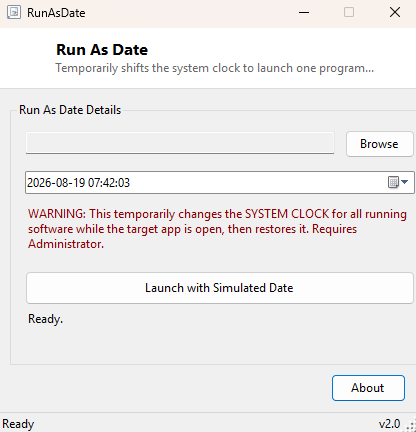
- Pick any executable and any target date and time through a simple browse dialog
- Launches the chosen program immediately under the simulated date
- Automatically restores the real system clock the moment the target program exits
- Works with any Windows application, since it changes the actual system clock rather than hooking specific API calls
- Clear on-screen warning about the system-wide nature of the change before you launch anything
Why You Might Need This Tool
Developers and testers are the most common audience — confirming that a subscription reminder fires on the right day, that a report correctly rolls over at month-end, or that a scheduled task behaves as expected next New Year's Eve are all far easier to verify by jumping the clock forward temporarily than by actually waiting. It is also occasionally useful for reviving an old piece of software whose trial period has expired, provided you have a legitimate right to keep using it — RunAsDate does not modify or bypass any licensing logic itself, it only changes what date the operating system reports, exactly the same effect as manually changing your clock in Windows Settings and changing it back afterward, just automated and scoped to a single program launch.
How It Works
Before launching anything, RunAsDate calls the Windows GetSystemTime
API to record the real current UTC time. It then converts your chosen target date
and time to UTC and calls SetSystemTime to set the system clock
forward or backward to that moment — this is the same low-level kernel32 API that
Windows' own date and time settings dialog ultimately calls. Immediately after, it
starts your chosen program with Process.Start and hands off to a
background task that calls WaitForExit on that process. The instant the
target program's process exits — normally or otherwise — that background task calls
SetSystemTime a second time with the originally recorded real time,
restoring the clock automatically without requiring you to remember to do it
yourself. If the program launch itself fails for any reason, the same restore logic
runs immediately in the error handler so the clock is never left in the simulated
state.
How to Use It
Click Browse and select the executable you want to run under a simulated date, set the target date and time in the picker, and click Launch with Simulated Date. The status label confirms once the program has started, and again once it closes and the real clock has been restored. Avoid launching anything else manually while the simulated date is active, since every other running program and background Windows process is also seeing that same changed clock for the duration.
System Requirements & Notes
Requires Administrator privileges — SetSystemTime needs the
SeSystemtimePrivilege, which standard user accounts do not hold by
default. Because the change is genuinely system-wide rather than scoped to one
process, background services, scheduled tasks, and anything else running on the
machine will also observe the simulated date while it is active; close anything
time-sensitive first.
Frequently Asked Questions
Is this safe to use?
Yes, provided you understand it changes the real system clock temporarily. The
restore-on-exit logic is reliable for normal program closure; if the target program
is force-killed by Task Manager rather than closed normally, manually check your
system clock afterward just in case.
Will this affect files I create while it's running?
Yes — any file created or modified timestamps will reflect the simulated date, since
the filesystem reads the same system clock everything else does.
Can I use this to keep a trial running forever?
Technically the mechanism does not prevent repeated use, but this tool is intended
for legitimate testing and development scenarios, not for circumventing licensing
terms you have agreed to.