Overview
Windows assigns drive letters largely in the order it discovers devices, which
means the USB drive that was E: yesterday can just as easily become
F: today once a different card reader or phone happens to enumerate
first. That is a minor annoyance for casual use but a real problem for anything
that hard-codes a drive letter — a backup script, a mapped shortcut, a batch file,
or software licensed to a specific volume. Drive Letter Manager exists to make
reassigning a drive letter a simple, visible, one-click operation instead of
something you have to remember the exact diskpart incantation for
every single time.
The built-in Windows Disk Management console can do the same job, but it buries the option several clicks deep inside a right-click menu on a graphical partition map that many people find intimidating to navigate confidently, especially when the drive in question happens to be a system or boot volume they are understandably nervous about touching incorrectly.
Key Features
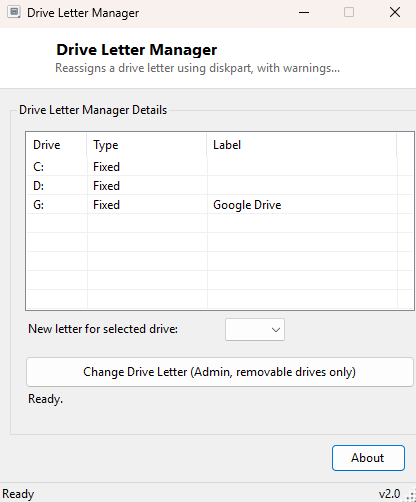
- Lists every drive currently attached, with type and current label
- Simple dropdown to pick any available new letter from D through Z
- Extra confirmation warning before changing a fixed/system drive's letter
- Uses the same underlying diskpart mechanism Windows' own tools rely on
- Automatically refreshes the drive list after a change completes
- No manual scripting or command-line syntax required at any point
Why You Might Need This Tool
The most frequent need is simply pinning a frequently-used external drive, card
reader, or network-attached storage enclosure to a consistent letter so that
scripts, shortcuts, and backup software configured to point at, say, X:
keep working session after session regardless of what order devices happened to be
plugged in. It is equally useful for resolving the rarer but more confusing
situation where two drives end up wanting the same letter, or where a
newly-inserted drive is assigned a letter already used by a mapped network drive,
creating a conflict Windows resolves in a way that is not always what you expected.
How It Works
The tool enumerates attached volumes with IO.DriveInfo.GetDrives(),
showing each drive's current letter, type and label. When you request a change, it
writes a tiny two-line diskpart script to a temporary file —
select volume <letter> followed by assign
letter=<newletter> — and launches
diskpart.exe /s <scriptfile> through an elevated process, since
diskpart itself always requires administrator rights to modify volume assignments
regardless of which front-end drives it. This is the identical mechanism Windows'
own Disk Management snap-in uses internally; the tool simply automates writing and
running the script so you never have to type diskpart commands by hand. If the
selected drive is not classified as Removable, Network or CD-ROM, an extra warning
dialog appears first, since reassigning a fixed or system drive's letter can, in
rare cases, break software that was installed expecting that specific letter to
remain stable.
How to Use It
Select the drive you want to change from the list, choose a new letter from the dropdown, and click Change Drive Letter. Windows' own UAC prompt will appear since diskpart requires elevation — approve it, and the list refreshes automatically to show the new assignment a moment later.
System Requirements & Notes
Changing a drive letter always requires administrator rights; simply viewing the current drive list does not. Never reassign the letter of a drive currently in active use by another running program, and be cautious reassigning your actual Windows boot/system drive letter, which this tool will warn about but does not outright block.
Frequently Asked Questions
Can I reuse a letter that's already assigned to another drive?
No — the dropdown only offers letters not currently in use, so a conflicting
assignment is prevented before it can happen.
Will this work on a USB drive with multiple partitions?
Yes, each partition appears as its own entry in the drive list and can be
reassigned independently.
Is this safe to use on my C: drive?
Technically the tool allows it after an extra warning, but changing your boot
drive's letter is strongly discouraged and can render Windows unable to start;
this option exists mainly for secondary fixed drives.