Overview
A PC's clock drifts. Motherboard real-time clocks are cheap crystal oscillators, not atomic references, and left alone for weeks or months they can wander by seconds or even minutes — usually harmlessly, until the moment a timestamp actually matters: a scheduled task fires at the wrong moment, a file's modified date looks earlier than it should, or a security certificate check fails because the system clock has drifted outside the certificate's valid window. Windows normally keeps itself in sync automatically through its built-in time service, but that service is not always running, not always configured against a server you trust, and gives you no easy way to check the current drift on demand. Net Time is a small, direct tool for exactly that: query a real NTP time server, see precisely how far off your clock is right now, and optionally correct it immediately.
Key Features
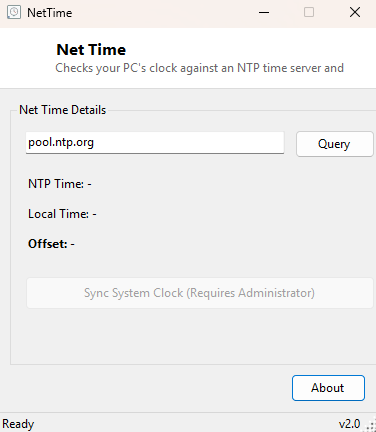
- Queries any NTP server you specify, defaulting to the public pool.ntp.org pool
- Displays the server's reported time alongside your local time, side by side
- Calculates and displays the exact offset in seconds, down to millisecond precision
- One-click sync applies the correction to the system clock immediately
- Implements the SNTP protocol directly over UDP — no external library dependency
- Works with any standards-compliant NTP server, not just the default pool
Why You Might Need This Tool
Time-sensitive workflows are more common than they first appear. Scheduled backup jobs, log file correlation across multiple machines, timestamped financial or audit records, and any TLS/HTTPS connection that checks certificate validity windows can all be quietly disrupted by a clock that has drifted more than expected — and because Windows itself does not surface the current drift anywhere convenient, problems caused by clock skew are often diagnosed only after something has already gone wrong. Virtual machines and machines that spend long periods asleep or hibernating are especially prone to drift, since the built-in Windows Time service syncs on its own schedule rather than continuously. Net Time gives you a direct, on-demand way to check "how far off am I right now" and fix it in the same window, rather than trusting that background synchronization has already handled it.
How It Works
Net Time implements the Simple Network Time Protocol (SNTP, a lightweight profile
of NTP) directly over a raw UDP socket to port 123. It builds a minimal 48-byte NTP
request packet with the first byte set to 0x1B (marking it as a client
request in NTP version 3, mode 3), sends it to the chosen server, and waits for the
reply. The response packet's transmit-timestamp field occupies bytes 40 through 47:
a 32-bit whole-seconds count followed by a 32-bit fractional-seconds count, both
measured from the NTP epoch of January 1, 1900 — a different epoch than the .NET
DateTime or Unix epoch, so the tool explicitly reconstructs a
DateTime anchored at that 1900 origin and adds the parsed
milliseconds to it. Comparing that reconstructed server time against
DateTime.Now gives the exact offset. If you choose to sync, the tool
calls the Win32 SetSystemTime API with the corrected UTC value, which
(like any system clock change) requires the appropriate Windows privilege to
succeed.
How to Use It
Leave the server field on its default (pool.ntp.org) or enter a
specific NTP server address, then click Query. Within a couple of
seconds the NTP time, your local time, and the calculated offset all appear. If the
offset is larger than you are comfortable with, click Sync System Clock
to apply the correction immediately — Windows may prompt for elevation, since
changing the system clock is a privileged operation.
System Requirements & Notes
Net Time runs on 64-bit Windows 10 and 11 and requires an active internet or LAN
connection to reach an NTP server. Querying the time does not require administrator
rights, but actually applying a sync via Sync System Clock does,
since SetSystemTime requires the SeSystemtimePrivilege
that standard user accounts do not hold by default — Windows will prompt for
elevation at that point if needed.
Frequently Asked Questions
Can I point this at my organization's internal NTP server instead of the public pool?
Yes — enter any reachable NTP server's hostname or IP address in the server field
before querying; the tool works with any standards-compliant SNTP/NTP server, not
only the public pool.
Does querying the time change my clock automatically?
No. Querying only reads and displays the offset — nothing on your system changes
until you explicitly click Sync System Clock.