Overview
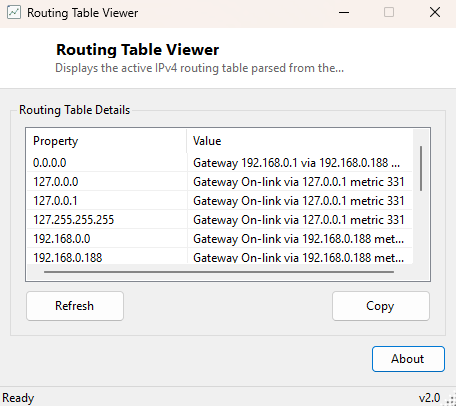
Every packet Windows sends is routed according to a table of rules deciding which network interface and which gateway to use for each destination range — the IPv4 routing table. Most of the time this table is invisible and irrelevant, silently doing its job correctly. It becomes very relevant the moment something is routing wrong: traffic destined for a VPN going out the regular internet connection instead, a second network adapter fighting with the first over which one gets default traffic, or a manually-added static route left behind from an old troubleshooting session quietly overriding normal behavior. Routing Table Viewer exposes this table in a clean, readable window instead of requiring a trip to the command line.
This is the same data route print shows at a command prompt, but
presented row by row in a proper list rather than as a wall of fixed-width text
that is easy to misread, especially on a system with several active adapters and a
dozen or more routing entries.
Key Features
- Lists every active IPv4 route with its destination network, gateway, interface and metric
- Presents routes as sortable rows instead of raw command-line text
- Refresh button to re-read the current table at any time, useful after connecting a VPN
- Works identically whether the table has three routes or thirty
- No administrator privileges required to view the table
- Purely read-only — makes no routing changes itself
Why You Might Need This Tool
VPN troubleshooting is the single most common reason to check the routing table — confirming whether a VPN client actually added the routes it claims to have added, and whether those routes have the priority (lowest metric) needed to actually be used ahead of a conflicting route. Multi-adapter systems, especially laptops that have both Wi-Fi and a docked Ethernet connection active simultaneously, are another common source of routing confusion worth checking directly rather than guessing. Network administrators and support technicians also use a routing table dump as standard diagnostic evidence when escalating a connectivity issue, since it rules out (or confirms) a whole category of problem in one glance.
How It Works
The tool launches route.exe with the print -4 argument as
a hidden child process, captures its standard output, and parses the resulting text
to extract the active IPv4 route table section — the same command Windows' own
networking stack exposes for exactly this purpose, run here without opening a
visible console window. Each line in the active routes section is split into its
network destination, netmask, gateway, interface address and metric columns and
rendered as a row in the results list. Using the real system command rather than a
reimplementation of routing-table enumeration guarantees the output always exactly
matches what the OS itself would report, including any dynamically-added VPN or
virtual-adapter routes that only exist for the duration of an active connection.
How to Use It
Launch the tool and the current routing table populates immediately. To check whether a VPN connection added the routes it should have, connect the VPN first, then click Refresh and look for new entries pointing at the VPN's gateway or virtual adapter. Compare metric values between routes covering overlapping destination ranges — the lower metric wins when Windows chooses which route to actually use for a given packet.
System Requirements & Notes
Routing Table Viewer runs on 64-bit Windows 10 and Windows 11 and does not require
administrator privileges — reading the routing table with route print
is a standard-user operation; only modifying routes with route add or
route delete requires elevation, and this tool never issues those
commands.
Frequently Asked Questions
Does this show IPv6 routes too?
This version focuses specifically on the IPv4 table for clarity and simplicity;
IPv6 routing uses a separate table with its own conventions that a future version
could cover as a distinct view.
Can I add or delete a route with this tool?
No — it is intentionally read-only. Routing changes carry real risk of losing
connectivity if done incorrectly, so this tool sticks to viewing and leaves editing
to the standard route add/route delete commands, run
deliberately and with full awareness of what is changing.
What does a "0.0.0.0" destination row mean?
That is the default route — the catch-all gateway used for any destination that
does not match a more specific entry elsewhere in the table, typically your main
internet gateway.