Overview
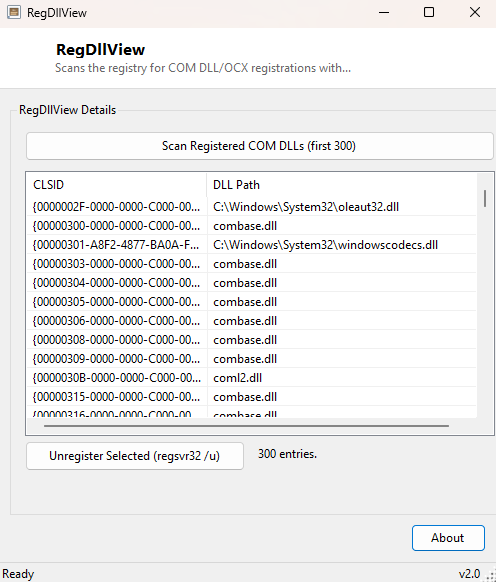
RegDllView scans the Windows registry for every COM component that has registered a
DLL or OCX as its in-process server, and presents the whole list — CLSID and the exact
DLL path behind it — in a single sortable table. COM registration is one of the more
invisible layers of a Windows installation: applications, shell extensions, ActiveX
controls and background components all quietly write entries under
HKEY_CLASSES_ROOT\CLSID, and short of manually walking the registry with
regedit there is no built-in way to see the whole picture at once. RegDllView exists to
make that picture visible, and to give you a one-click way to unregister a component
once you have found it.
This is the kind of tool that spends most of its life unused and then becomes essential for exactly one afternoon — the day a broken installer, a leftover shell extension, or a dangling COM reference starts causing Explorer crashes, and you need to find the offending DLL registration to remove it.
Key Features
- Scans HKEY_CLASSES_ROOT\CLSID for InprocServer32 entries pointing at .dll files
- Displays each entry's CLSID and full DLL path side by side
- One-click Unregister using the standard regsvr32 /u mechanism
- Scoped scan (first 300 entries) to keep the tool fast and responsive on a full registry
- No registry values are ever written directly — all changes go through regsvr32
- Read-only by default; nothing is modified until you explicitly click Unregister
Why You Might Need This Tool
The most common reason people reach for a tool like this is a misbehaving shell extension — Explorer becomes sluggish, right-click menus take a visible beat to appear, or Explorer itself starts crashing intermittently, and the usual suspect is a third-party context-menu handler or thumbnail provider registered as a COM in-process server that never got cleanly removed by its own uninstaller. RegDllView lets you scan the registration list, spot an unfamiliar or clearly orphaned DLL path (pointing at a folder that no longer exists, for example), and unregister it without having to hand-edit the registry. Developers also use tools like this during COM component development, to confirm a build actually registered correctly and to clean up test registrations between builds.
How It Works
RegDllView opens HKEY_CLASSES_ROOT\CLSID via
Microsoft.Win32.Registry.ClassesRoot and enumerates its subkey names, each
of which is a CLSID GUID. For each one, it attempts to open the
\InprocServer32 subkey and read its default value — the DLL path a COM
client would load when instantiating that CLSID. Entries whose default value ends in
.dll (case-insensitively) are added to the grid; anything else, or any CLSID
without an InprocServer32 subkey at all, is skipped. The scan stops after 300 matching
entries specifically to keep the tool responsive, since a heavily-used Windows
installation can have several thousand CLSID entries and walking every one with full
subkey opens would introduce a noticeable delay. Unregistering a selected entry does not
touch the registry directly — it shells out to regsvr32.exe /u /s "<path>",
the same official DllUnregisterServer mechanism every proper COM component implements,
requesting elevation via the process's Verb property so Windows prompts for
Administrator rights at the moment the unregister actually happens.
How to Use It
Launch RegDllView and it scans automatically, populating the grid within a second or two. Click Scan again at any point to refresh the list. Select the CLSID/DLL pair you want to remove and click Unregister; Windows will prompt for elevation via UAC, and a status line confirms once the regsvr32 command has run.
System Requirements & Notes
Scanning and viewing requires no special privileges. Unregistering a component requires Administrator rights, since regsvr32 needs to write to the registry; RegDllView requests elevation only at that moment, not when the tool first opens. Unregistering the wrong DLL can break whatever legitimate application depends on it, so only unregister entries you can positively identify as unwanted or orphaned.
Frequently Asked Questions
Why does the list stop at 300 entries?
It is a deliberate cap to keep the scan fast. Most investigative use cases — hunting a
specific misbehaving component — are satisfied well within the first few hundred
entries; a full unbounded scan is not needed for that workflow.
Can this tool register a new DLL, not just unregister one?
Not currently — RegDllView is scoped to viewing existing registrations and unregistering
ones you no longer want, matching its most common real-world use case.
Is unregistering reversible?
Yes, in most cases — running regsvr32 "<path>" without the /u flag on
the same DLL re-registers it, as long as the file itself is still present on disk.