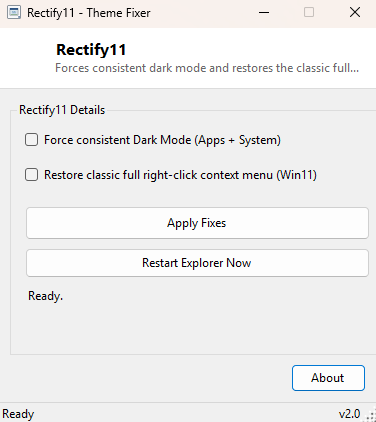
Overview
Rectify11 is a small, focused fix for two of the most complained-about interface changes Windows 11 introduced: an inconsistent, half-finished dark mode that leaves some system surfaces stubbornly light even when "Dark" is selected, and a trimmed-down right-click context menu that hides half of Explorer's classic commands behind an extra "Show more options" click. Rather than a general-purpose tweaking suite trying to touch every Windows 11 design decision, this tool addresses exactly those two specific annoyances and nothing else.
Key Features
- Forces consistent dark mode across both apps and system surfaces in one toggle
- Restores the full, classic right-click context menu instead of the shortened Windows 11 version
- Detects and reflects your current dark-mode setting automatically on launch
- One-click Explorer restart button so changes take effect immediately without a full reboot
- Both fixes can be applied independently — you don't have to accept both at once
Why You Might Need This Tool
Windows 11's dark mode setting only fully applies to modern (WinUI/UWP-style) apps and the primary system chrome — a meaningful number of older dialogs, right-click menus and legacy Control Panel applets stay stubbornly light-themed regardless of what "Apps" and "System" are both set to in Settings, which creates a jarring flash of white in an otherwise dark desktop. Separately, Windows 11's redesigned context menu deliberately hides commands like "Give access to", "Send to" and several shell-extension entries behind a "Show more options" submenu (or Shift+F10) to keep the default menu shorter — a decision that saves clicks for casual users but adds an extra click for anyone who relied on those commands being one right-click away for years. Rectify11 exists for exactly the people in the second group.
How It Works
The dark mode fix writes directly to the two registry values Windows itself reads to
decide theme state: AppsUseLightTheme and SystemUsesLightTheme
under HKEY_CURRENT_USER\Software\Microsoft\Windows\CurrentVersion\Themes\Personalize,
setting both to 0 to force dark mode consistently rather than leaving them potentially
out of sync with each other. The context-menu fix uses a documented (if unofficial)
registry technique: creating an empty default value under
HKCU\Software\Classes\CLSID\{86ca1aa0-34aa-4e8b-a509-50c905bae2a2}\InprocServer32
effectively tells Windows 11's shell that this particular CLSID (which controls the
new shortened context menu behavior) has no handler, causing Explorer to fall back to
the full classic menu instead. Because both changes are read by Explorer at startup
rather than continuously, the tool includes a dedicated "Restart Explorer Now" button
that terminates and relaunches explorer.exe so the effect is visible
immediately rather than requiring a full sign-out or reboot.
How to Use It
Tick whichever fix (or both) you want applied — "Force consistent Dark Mode" and/or "Restore classic context menu" — and click Apply Fixes. Then click Restart Explorer Now to see the change take effect immediately; right- click any file or the desktop afterward to confirm the full classic menu appears directly, with no "Show more options" step needed.
System Requirements & Notes
Runs on Windows 11 (the context-menu behavior does not exist on Windows 10, though the
dark-mode fix is harmless there too). The registry keys touched are both per-user
(HKEY_CURRENT_USER), so no administrator elevation is required for either
change — both take effect for the currently signed-in account only.
Frequently Asked Questions
Will this survive a Windows feature update?
Major Windows 11 feature updates have occasionally reset shell-related registry tweaks
like the context-menu CLSID override; if the classic menu reverts after a big update,
simply re-run Rectify11 and restart Explorer again.
Can I undo the context menu change later?
Yes — deleting the InprocServer32 key created under that CLSID (or using
Windows' own "Settings reset" for personalization) restores the default Windows 11
shortened menu.