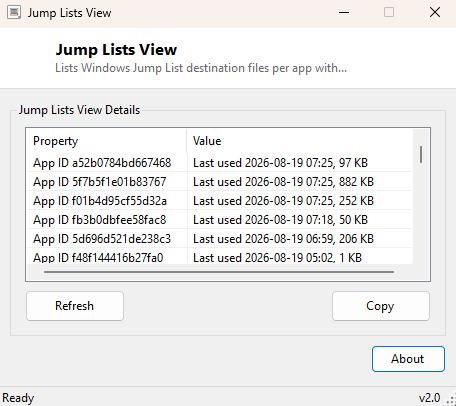
Overview
Every time you right-click a taskbar or Start menu icon and see a "Recent" list of files under an application's jump list, Windows is reading from a per-app history file it maintains quietly in the background. Jump Lists View surfaces those history files directly, listing every application's jump-list data store along with when it was last updated — giving you visibility into a piece of Windows' recent-activity tracking that normally only shows up piecemeal, one right-click at a time, and only for applications currently pinned or recently used.
Key Features
- Lists every AutomaticDestinations jump-list file Windows has stored
- Shows each file's last-modified timestamp, indicating when that app's jump list last changed
- Reports approximate file size as a rough indicator of history depth
- Works entirely from files already on disk — no registry or Event Log access needed
- Read-only inspection with no ability to delete or clear jump-list history from this tool
Why You Might Need This Tool
Jump lists are one of the more overlooked sources of recent-activity evidence on a Windows machine — useful when you are trying to reconstruct what applications were actively used recently as part of routine troubleshooting or a personal audit of your own activity history, or when you simply want to understand how much recent-file tracking data Windows is quietly accumulating per application over time. Because each entry is keyed by an application identifier hash rather than a human-readable name, seeing the raw file list alongside timestamps is often the fastest way to spot which applications have been generating the most jump-list activity recently, just by looking at which files have the newest modification dates.
How It Works
Windows stores per-application jump-list data as OLE Structured Storage files named
with a 16-character hexadecimal AppID hash, located in
%APPDATA%\Microsoft\Windows\Recent\AutomaticDestinations. This tool
enumerates every *.automaticDestinations-ms file in that folder using
standard .NET file system APIs, sorts them by last-write time (most recently active
first), and reports each one's App ID hash alongside its timestamp and file size. It
deliberately does not attempt to open and parse the OLE compound-file structure inside
each one — doing that correctly, and then further decoding the embedded Shell Link
binary streams to recover actual file paths, is a meaningfully larger undertaking that
this lightweight tool is honest about not attempting; it surfaces which application
histories exist and how recently they changed, which answers the majority of practical
"what has been active lately" questions on its own.
How to Use It
Launch the tool and the current AutomaticDestinations folder contents populate immediately, newest first. Click Refresh after using other applications if you want to see updated timestamps reflecting your most recent activity.
System Requirements & Notes
Runs on 64-bit Windows 10 and Windows 11 with no administrator rights, since it only reads files from the current user's own AppData folder. It cannot see or report on other users' jump-list history on a shared machine.
Frequently Asked Questions
Can this tool tell me the actual file names in each jump list?
Not in this version — it reports which per-app history files exist and when they
last changed, but does not decode the OLE compound-file internals needed to extract
individual file path entries.
Does clearing my Recent Items in Windows affect this data?
Yes — Windows' own "Clear recent items" option removes these files, and the next time
you run this tool the corresponding entries will simply be gone.