Overview
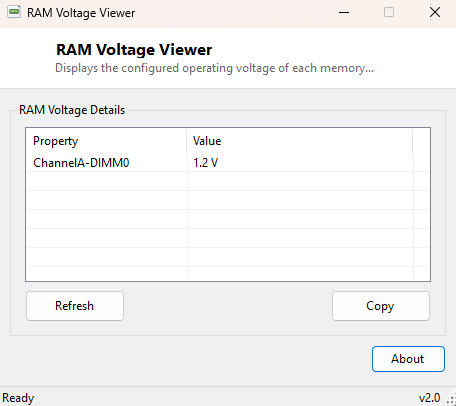
RAM Voltage Viewer reports the configured operating voltage of each installed memory module, one entry per populated DIMM slot. Memory voltage rarely comes up in everyday use, but it matters a great deal the moment you start mixing modules from different kits, enabling an XMP/DOCP memory profile in BIOS, or troubleshooting instability that might trace back to a voltage mismatch between sticks that otherwise look compatible on paper.
Key Features
- Shows the configured voltage of every populated memory slot, in volts
- Labels each entry with its physical DIMM slot location
- Clearly reports when a module does not expose voltage data at all
- No scanning delay — reads instantly on launch
- One-click copy of the full report to the clipboard
- Works identically across desktops and laptops
Why You Might Need This Tool
Mixing memory modules rated for different voltages in the same system is a common, quiet cause of instability — the system will typically run everything at whichever voltage the motherboard defaults to, which may not be optimal or even fully stable for every stick installed. Before adding a module to an existing kit, or after enabling a memory overclocking profile in BIOS, confirming each stick's actual configured voltage from inside Windows is a fast way to sanity-check the configuration without needing to dig back into firmware settings.
How It Works
The tool queries Win32_PhysicalMemory through WMI for
DeviceLocator and ConfiguredVoltage. The
ConfiguredVoltage field is reported in millivolts by WMI's convention, so
the tool divides the raw value by 1000 to present it in the more familiar volts format
(for example, 1200 becomes "1.2 V"). Not every system's firmware populates this field
consistently — some report a value of zero even when memory is clearly installed and
working correctly — and the tool explicitly reports "Not reported" in that case rather
than displaying a misleading "0 V" that could be mistaken for an actual reading.
How to Use It
Open the tool and every populated slot's configured voltage appears immediately. Use Copy to place the report on the clipboard when comparing against a new module's rated voltage before purchasing, or when documenting a system's exact memory configuration for troubleshooting.
System Requirements & Notes
Runs on 64-bit Windows 10 and Windows 11 and needs no administrator rights — voltage data is readable through WMI by any standard user account.
Frequently Asked Questions
Why does my module show "Not reported"?
Some motherboard firmware and memory module combinations do not populate this
particular SMBIOS field even though the system otherwise functions normally — this is
a reporting gap in that specific hardware combination, not an indication of a problem.
Is a higher voltage always faster?
Higher-rated voltage often correlates with higher-speed memory kits designed to run
stably at those speeds, but running memory outside its rated voltage without
understanding the implications can affect stability and, in extreme cases, module
longevity.
Can this tool change my memory voltage?
No — it is read-only. Voltage is configured through your motherboard's BIOS/UEFI
firmware, typically via an XMP, DOCP or manual memory overclocking profile.