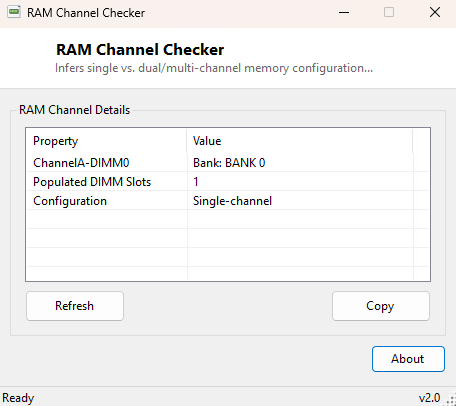
Overview
Modern memory controllers get most of their real-world bandwidth not from raw clock speed alone but from running multiple memory channels in parallel. A system with two identical sticks correctly split across two channels can move noticeably more data per second than the exact same total capacity crammed into a single channel, yet Windows gives you no obvious on-screen indicator of which configuration you actually have — Task Manager's Performance tab shows total installed capacity and a speed number, but nothing about channel topology at all. RAM Channel Checker exists specifically to close that gap: it looks at how many DIMM slots are populated, matches them up by bank label, and reports a clear, best-effort read on whether the system is running single-channel, dual-channel, or a larger multi-channel layout.
Key Features
- Lists every populated memory slot along with its bank label and capacity
- Counts populated DIMM slots and reports the total at a glance
- Infers single-channel vs. dual/multi-channel operation from the slot count
- Flags an odd or asymmetric slot count as a configuration worth double-checking
- No configuration required — results appear the moment the window opens
- Works identically on desktop, laptop and small-form-factor systems
Why You Might Need This Tool
Channel configuration is one of the most common causes of "I upgraded my RAM but nothing got faster" disappointment. If you add a single extra stick to a system that already has one stick installed, you may end up in dual-channel mode purely by luck of which physical slot you happened to use — or you may not. Motherboards vary considerably in which physical slots belong to which channel, the silkscreen labeling on the board itself is not always intuitive, and the manual is rarely at hand when you are mid-upgrade with the case open on the desk. Running this tool before and after a memory upgrade, or simply the first time you sit down at an unfamiliar PC you have been asked to fix, tells you in seconds whether the installed memory is actually taking advantage of the channels the motherboard supports, rather than leaving that question as a nagging "maybe" for weeks.
How It Works
The tool queries Win32_PhysicalMemory through Windows Management
Instrumentation for every currently installed memory module, reading each one's
DeviceLocator and BankLabel field along with its reported
capacity. Because Windows does not expose a direct, explicit "channel number"
property for installed RAM the way it does for, say, a network adapter's link
speed, the tool applies the same simple, well-established heuristic enthusiast
diagnostic tools have relied on for years: an even number of identically-sized
modules strongly suggests a properly balanced dual- or multi-channel layout, while a
single populated slot, or an odd and mismatched module count, is flagged as likely
single-channel or asymmetric and worth confirming manually against the motherboard
manual's slot color-coding diagram.
How to Use It
Open the program and the memory slot table populates immediately, followed by a summary line showing the populated slot count and the inferred channel configuration. No buttons need to be clicked and no options need to be set for a first read; a Refresh button is available if you want to re-check the configuration immediately after physically adding or removing a memory module without restarting the program.
System Requirements & Notes
Runs on 64-bit Windows 10/11 with no administrator rights required — reading installed-memory data through WMI is a standard-user operation on every supported version of Windows. Because the channel determination is inferred from slot population rather than read directly from a channel-aware hardware register, treat it as a strong, reliable hint rather than an absolute guarantee on unusual server-class motherboards with non-standard slot layouts or triple/quad-channel workstation platforms.
Frequently Asked Questions
Can this tool tell me which physical slots to use for dual-channel?
No — it reports what is currently installed, not the motherboard's internal slot
wiring. Check your motherboard manual's slot color-coding for that; slots of the
same color almost always belong to the same channel pairing.
Why does it say single-channel when I have two sticks installed?
If both sticks are in slots belonging to the same channel — a common mistake on
four-slot boards when only two adjacent slots are filled — you can have two modules
installed and still run single-channel. Try moving one stick to the alternating slot
pair and re-run the check.
Does capacity have to match exactly between sticks for dual-channel to work?
Most modern controllers will run dual-channel with mismatched capacities using
flexible or "asymmetric" channel modes, but matched capacity, speed and timings
remain the safest and most predictable configuration.
Will a BIOS update change what this tool reports?
It can — firmware updates occasionally correct how SMBIOS reports bank labeling, so
it is worth re-checking after any BIOS update if the reported layout looks
unexpected.