Overview
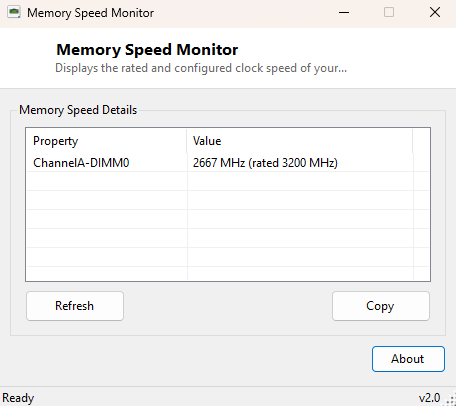
Memory Speed Monitor answers one very specific question that trips up more PC builders than it should: is your RAM actually running at the speed you paid for? Every memory module ships with a rated speed printed on the sticker — 3200 MHz, 3600 MHz, 6000 MHz and so on — but the speed Windows and your motherboard actually configure it to run at depends on your BIOS/UEFI settings, whether XMP or EXPO has been enabled, and sometimes simple slot population rules that quietly downclock a kit if it is installed the wrong way. This tool reads both numbers side by side, per installed module, so a mismatch is obvious the moment the window opens.
It is deliberately a companion to the more general RAM Speed Checker elsewhere in this catalog — both read the same underlying data, but Memory Speed Monitor is framed specifically around the "am I actually getting what I paid for" comparison rather than a general specification dump.
Key Features
- Shows rated (Speed) and configured (ConfiguredClockSpeed) clock rate for every populated memory slot
- Reports each module by its DeviceLocator (e.g. "DIMM_A1"), so you know exactly which physical slot is underperforming
- Falls back cleanly to the rated speed when a configured value is not reported
- One-click Refresh and Copy-to-clipboard for pasting results into a support ticket or forum post
- No background service, no scheduled task — reads once per click
Why You Might Need This Tool
The most common reason people reach for this tool is straightforward buyer's-remorse prevention: you just built or upgraded a PC, installed a memory kit rated for 6000 MHz, and want independent confirmation it is not silently running at the motherboard's conservative default (often 2133 or 3200 MHz on many boards until XMP or EXPO is manually enabled in the BIOS). It is equally useful after any BIOS update, since a firmware flash occasionally resets memory overclock profiles back to JEDEC-standard defaults without any obvious warning. A third scenario is diagnosing an unexplained performance regression — if a game or application that is sensitive to memory bandwidth suddenly feels slower, checking whether your RAM quietly dropped out of its XMP profile (a common symptom of marginal stability) is one of the first things worth ruling out.
How It Works
The tool queries Win32_PhysicalMemory through Windows Management
Instrumentation, reading the DeviceLocator, ConfiguredClockSpeed
and Speed fields for every populated DIMM. Speed is the
module's rated maximum as reported by its SPD (Serial Presence Detect) EEPROM;
ConfiguredClockSpeed is what the memory controller actually negotiated
it to run at right now. When a motherboard or driver does not populate
ConfiguredClockSpeed — which happens on some older systems — the tool
falls back to displaying the rated speed instead of showing a blank value, so the
window is never left looking broken. Because this is read entirely through WMI
rather than direct SPD access, it works identically across Intel and AMD platforms
and requires no vendor-specific driver.
How to Use It
Launch the tool and it immediately lists every populated memory slot with its running and rated speed side by side, formatted like "DIMM_A1: 4800 MHz (rated 6000 MHz)". If the two numbers match, your memory is running at full rated speed. If the running speed is noticeably lower, open your BIOS/UEFI setup, look for an XMP, DOCP or EXPO profile option under memory or overclocking settings, enable it, save, reboot, and re-run this tool to confirm the change took effect. Click Copy at any point to place the full report on the clipboard.
System Requirements & Notes
Runs on 64-bit Windows 10 and Windows 11 without administrator rights, since reading WMI hardware inventory data is a standard-user operation. This tool only reports speed; it cannot enable XMP/EXPO itself, since that setting lives in motherboard firmware outside the operating system's control.
Frequently Asked Questions
My configured speed shows lower than rated — is my RAM defective?
Almost certainly not. This is the expected default behavior on most motherboards
until you manually enable an XMP/DOCP/EXPO profile in BIOS; RAM ships defaulting to
a conservative JEDEC speed for guaranteed out-of-box stability.
Why do my two DIMMs show slightly different numbers?
In a correctly matched kit they should not, but mismatched or third-party-added
modules will often be forced down to the slowest module's rated speed by the memory
controller — this tool will show that clearly per slot.