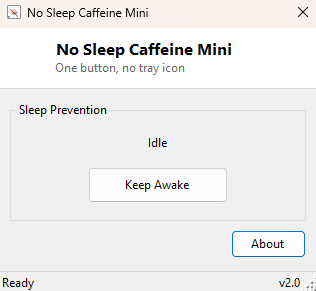
Overview
No Sleep Caffeine Mini is the deliberately smaller sibling of Caffeine — the same underlying sleep-blocking technique, reduced to the absolute minimum possible interface: one window, one button, no tray icon, no extra options. It exists for the people who found even Caffeine's small footprint to be one setting too many, and just want a single toggle that keeps the screen from locking without any interface to think about.
Where Caffeine adds a tray icon presence and an optional display-on toggle for more flexible day-to-day use, this mini variant strips all of that away in favor of the smallest possible always-on-top window you can glance at to confirm it is still running.
Key Features
- Single "Keep Awake" toggle button — no additional settings of any kind
- Always-on-top compact window that stays visible as a status indicator
- No system tray icon and no background presence beyond the visible window
- Instant on/off with no confirmation dialogs or delays
- Automatically restores normal sleep behavior the moment the window is closed
- Under 150 KB with effectively no startup delay
Why You Might Need This Tool
Some situations call for exactly this level of simplicity — kiosk-style displays, shared or public-facing machines where a full application with a tray icon and settings would be confusing to a non-technical person nearby, or simply a personal preference for the smallest, most obvious possible "is this on or off" indicator rather than a tray icon that is easy to forget about. If you find yourself only ever using Caffeine's basic on/off toggle and never touching the display-on option, this tool gives you the same core behavior with nothing else to look at.
How It Works
Functionally this tool uses the identical mechanism as Caffeine — a direct call to
the Windows SetThreadExecutionState API with the
ES_CONTINUOUS and ES_SYSTEM_REQUIRED flags set while active,
which is the same official API well-behaved applications use to legitimately prevent
idle sleep. The difference is entirely in scope: there is no tray icon component, no
display-on option, and no background timer beyond what is needed to keep the
execution-state flag reasserted while the toggle is on. Closing the window or clicking
the toggle off immediately calls SetThreadExecutionState(ES_CONTINUOUS)
alone, clearing the sleep-prevention flag and handing control straight back to
Windows' normal power management.
How to Use It
Launch the tool and click the single button to toggle sleep-prevention on; the label and status text update immediately to confirm it is active. Click again, or simply close the window, to restore normal behavior. There is nothing else to configure.
System Requirements & Notes
Runs on 64-bit Windows 10 and Windows 11 and requires no administrator rights, for the same reason Caffeine does not — preventing sleep through the official API is a standard-user operation with no system-wide configuration changes involved.
Frequently Asked Questions
What's the actual difference from Caffeine?
Functionally almost nothing — the underlying technique is identical. The difference is
purely interface size: no tray icon, no display-on checkbox, just one button.
Does this keep the display on as well as the system awake?
No — this mini version only prevents system idle sleep, not display timeout. If you
also need the screen to stay lit, use Caffeine instead
and enable its display-on option.
Can I run both this and Caffeine at the same time?
Yes, though there is no benefit to doing so since both call the same underlying
Windows API — running either one alone is sufficient.