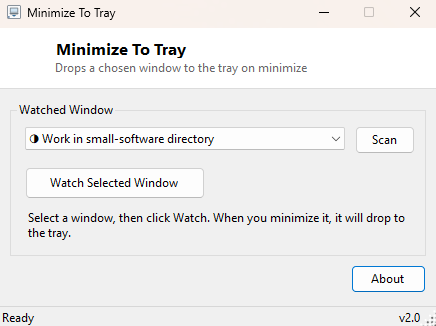
Overview
Minimize To Tray fixes one specific, mildly infuriating habit that a handful of Windows applications refuse to break: some programs simply will not minimize to the system tray no matter what you set in their own preferences, insisting instead on parking a taskbar button that clutters Alt+Tab and the taskbar itself every time you tuck them out of the way. This tool watches a window you pick and forces it into the tray the instant you minimize it, regardless of whether the application itself was ever designed to support that behavior.
It does this without touching the target application at all — no plugin, no settings file, no injected code inside the other process. It simply watches from the outside and reacts to the one specific state change that matters: the moment a window becomes minimized.
Key Features
- Scans and lists every visible top-level window currently open, ready to pick from a dropdown
- Watches exactly one chosen window at a time for minimize events
- Automatically hides the window and shows a tray icon the instant it is minimized
- Double-click the tray icon (or use the right-click menu) to restore the window instantly
- Works with any standard top-level window, not just applications specifically written to support tray minimizing
- No changes made to the target application itself — entirely external and non-invasive
Why You Might Need This Tool
Chat clients, monitoring dashboards, download managers and a surprising number of utility programs (including some genuinely useful ones) are built with an assumption that you always want a visible taskbar entry. If you run several of these simultaneously alongside your normal work, the taskbar fills up with windows you only glance at occasionally, and Alt+Tab turns into a slow scroll through icons you do not currently care about. Minimize To Tray lets you keep those background programs running exactly as before while reclaiming the taskbar space and Alt+Tab clarity that their own developers never got around to offering.
How It Works
On startup, Minimize To Tray calls the Win32 EnumWindows API to walk
every top-level window currently on the desktop, filtering to ones that are
currently visible and have a non-empty title (retrieved with
GetWindowText), and lists them in a dropdown for you to choose from.
Once you pick a target and click Watch, a timer polls that specific window handle
roughly twice a second using IsIconic, the same Win32 call Windows
itself uses internally to check whether a window is currently minimized. The moment
it reports true and the window has not already been hidden, the tool calls
ShowWindow with the SW_HIDE flag to remove it from the
taskbar entirely and shows a NotifyIcon tray icon in its place.
Double-clicking that tray icon calls ShowWindow again with
SW_RESTORE and brings the window back to the foreground with
SetForegroundWindow.
How to Use It
Open Minimize To Tray, click Scan if the window you want is not yet in the list (it launched after the initial scan), select it from the dropdown, and click Watch Selected Window. From that point on, minimizing that specific window sends it straight to the tray instead of the taskbar. Double-click the tray icon whenever you want it back, or right-click for a small menu with the same restore option plus an exit command.
System Requirements & Notes
Runs on 64-bit Windows 10/11 and does not require administrator rights for normal windows. It can only watch one window per running instance of the tool — launch a second copy if you need to tray-minimize two different applications at once.
Frequently Asked Questions
Does this modify the application I am hiding?
No. It only calls standard, external Win32 window-management functions on the
window handle — the target application's own code and files are never touched.
What happens if I close Minimize To Tray while a window is hidden?
The watched window is restored to normal visibility as part of shutdown, so nothing
is left permanently hidden.
Can it watch multiple windows at once?
A single instance watches one window. Run a second copy of the tool for a second
window if needed.