Overview
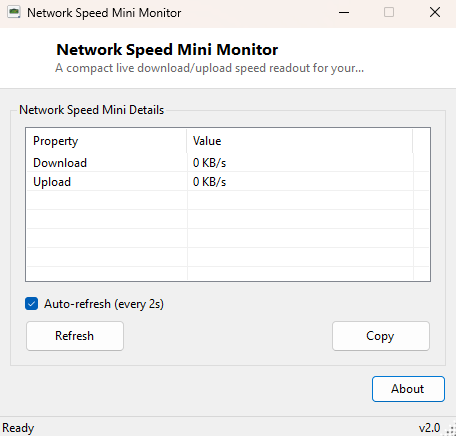
Network Speed Mini Monitor is exactly what its name promises: a small, always-live readout of current download and upload speed, with nothing else in the window competing for attention. Where a full network monitoring suite would give you graphs, history, per-application breakdowns and configuration screens, this tool gives you two numbers — Download and Upload, in KB/s — updated every second, and stops there.
It exists for the moments when you just want to glance at real throughput without opening Task Manager's Performance tab, switching to its Network view, and reading a combined graph that mixes every adapter together. This tool is small enough to sit in a corner of the screen permanently without being intrusive.
Key Features
- Live download and upload speed in KB/s, refreshed every second
- Combines throughput across all active, non-loopback network adapters
- Minimal compact window designed to be left open in a corner of the screen
- No configuration, no adapter selection dialogs — it just works on launch
- Extremely lightweight polling that adds negligible overhead of its own
- No history, logging or graphing — a pure live-number readout by design
Why You Might Need This Tool
The most common use is simply confirming that a download or upload is actually happening at a reasonable speed without switching applications — glance at the corner of the screen instead of alt-tabbing to a browser's download manager or a torrent client's transfer list. It is equally useful for spotting unexpected background network activity: if the upload number is climbing steadily while you are not knowingly uploading anything, that is a useful early signal to investigate what is running, whether it is a cloud-sync client, an automatic backup, or something less welcome. Gamers and video-call users also reach for tools like this to sanity-check whether a laggy connection is actually a bandwidth problem or something else entirely, since a live number is far more informative in the moment than a one-off speed test taken minutes earlier.
How It Works
On each one-second timer tick, the tool enumerates every active, non-loopback
adapter via NetworkInterface.GetAllNetworkInterfaces() and reads each
one's GetIPv4Statistics() for cumulative BytesReceived
and BytesSent counters — the same running totals Windows itself
maintains per adapter since the interface was last reset. Because these are
cumulative totals rather than instantaneous rates, the tool keeps the previous
tick's byte counts for every adapter and computes the delta since the last
reading, divided by the elapsed time, to arrive at a genuine bytes-per-second
figure. Those per-adapter deltas are summed across every active adapter and
converted to KB/s for display, which is why a system with both Wi-Fi and Ethernet
active simultaneously will show combined throughput across both rather than only
one.
How to Use It
Launch the tool and the Download/Upload figures begin updating immediately — there is no setup step. Position the small window somewhere visible and leave it running; it is light enough to stay open for an entire session without noticeable performance impact.
System Requirements & Notes
Runs on 64-bit Windows 10 and Windows 11 without requiring administrator rights — reading network interface statistics is available to any standard user. The very first reading after launch may show 0 KB/s momentarily, since a baseline byte count has to be captured before the first meaningful delta can be calculated one second later.
Frequently Asked Questions
Does this show speed per application, like which program is using the most bandwidth?
No — it reports total throughput per adapter, combined, not broken down by process.
For that level of detail, Windows' Resource Monitor's Network tab is a better fit.
Can I monitor just one specific adapter?
Not in this version — it always reports the combined total across all active
adapters.
Is this the same as an internet speed test?
No — a speed test actively transfers data to measure your connection's maximum
capacity. This tool passively reports whatever traffic is already happening, which
will only approach your maximum speed if something is actually transferring data
at full capacity at that moment.