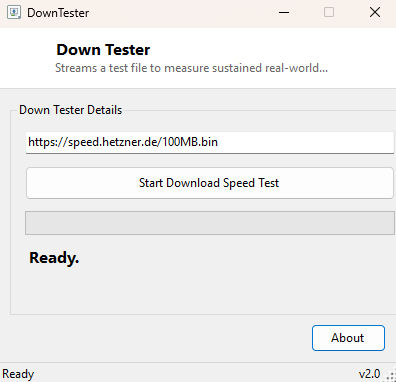
Overview
Browser-based speed test sites are convenient, but they measure something slightly different from what you usually actually care about: a short burst against a nearby CDN server optimized specifically for speed-test traffic. DownTester takes a more direct approach, streaming a real file download from a URL you choose — by default a large public test file — and reporting sustained throughput calculated from actual bytes received over actual elapsed time, the same measurement that determines how long your next real download or update will actually take.
Because it streams the response rather than waiting for a complete download before measuring anything, DownTester gives you a live-updating megabits-per-second figure throughout the test rather than a single number you only see at the very end, making it easy to watch a connection ramp up, throttle, or fluctuate in real time.
Key Features
- Editable target URL, defaulting to a large public test file suitable for sustained throughput measurement
- Live-updating Mbps figure that recalculates continuously as data streams in
- Progress bar reflecting elapsed test time against a fixed measurement window
- Reports total megabytes transferred alongside the calculated speed
- Streams data directly to memory in chunks rather than saving a large file to disk
Why You Might Need This Tool
The most common reason to reach for a tool like this is troubleshooting a connection that "feels slow" in some specific context — a large file transfer over VPN, a download from a specific vendor's update server, or a connection to a remote office — where a generic speed test against a nearby CDN gives you a number that does not match the actual problem you are experiencing. Pointing DownTester directly at the same kind of large file you are actually struggling to download gives you a throughput figure for that specific path, which is far more diagnostically useful than a generic "your internet is fine" result from a speed-test website measuring an entirely different route.
How It Works
DownTester uses System.Net.Http.HttpClient with
HttpCompletionOption.ResponseHeadersRead, which begins reading the
response body as a stream the instant headers arrive rather than buffering the
entire file in memory first. It then reads that stream in 64KB chunks in a loop,
accumulating a running total of bytes received. After every chunk, it recalculates
throughput as (totalBytes × 8) ÷ 1,000,000 ÷ elapsedSeconds using a
Stopwatch that started the moment the request began, converting the
running byte count into megabits per second on every update rather than only at the
end. The loop continues either until the stream ends or until a fixed ten-second
measurement window elapses, whichever comes first, which keeps test duration
predictable regardless of how large the target file actually is.
How to Use It
Leave the default test URL in place for a general throughput check, or replace it with a direct link to a large file relevant to whatever you are actually troubleshooting, then click Start Download Speed Test. Watch the Mbps figure update live for up to ten seconds; the final number shown when the progress bar completes is your sustained throughput for that specific source.
System Requirements & Notes
Requires an active internet connection and no administrator privileges. Results depend heavily on the target server's own bandwidth and distance, so always compare results against the same URL for consistency rather than comparing across different test files.
Frequently Asked Questions
Why is my result different from a browser speed-test site?
Different servers, different distances, and different measurement windows all
produce different numbers. DownTester measures whatever URL you point it at directly,
which is the point — it is meant to test a specific real path, not a generic
baseline.
Does this test upload speed too?
No, DownTester measures download throughput only. Pair it with
Ping Utility for latency if you need a fuller picture
of a connection's overall behavior.
Can I use my own file URL?
Yes — any direct, publicly accessible file URL works; just make sure the file is
large enough (tens of megabytes or more) to give the measurement time to stabilize.