Overview
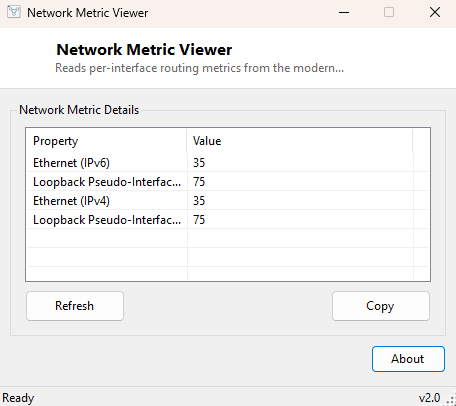
On a machine with more than one active network path — Wi-Fi and Ethernet both connected, or a physical adapter alongside a VPN's virtual one — Windows has to decide which route traffic actually prefers when more than one path could reach the same destination. That decision is driven by a per-interface routing metric: a lower number wins. Most people have never seen this number, let alone knowingly set it, yet it quietly explains a specific and confusing category of problem — traffic taking a slower connection even though a faster one is also active and working. Network Metric Viewer reads this exact value for every interface so you can see, in plain terms, which connection Windows currently prefers and why.
This tool reports both IPv4 and IPv6 metrics separately per interface, since Windows maintains independent routing preferences for each address family, and it is entirely possible for a system to prefer different interfaces for IPv4 versus IPv6 traffic.
Key Features
- Shows the routing metric for every network interface, IPv4 and IPv6 separately
- Reads live data from the modern Windows networking WMI provider
- Refresh button for an on-demand update after connecting a new interface
- Copy button exports the results as plain text
- Fast, synchronous scan on launch
- Read-only — never changes an interface's metric
Why You Might Need This Tool
The classic scenario this tool addresses is a laptop connected to both a fast wired dock and a slower Wi-Fi network at the same time, with traffic mysteriously still going out over Wi-Fi. Rather than guessing, checking the routing metrics for both interfaces immediately shows whether Ethernet genuinely has the lower (preferred) metric it should — and if it does not, that is the actual root cause, not a driver bug or a flaky cable. VPN users hit a related version of this problem regularly: after connecting, all traffic is supposed to route through the VPN's virtual adapter, but a misconfigured or unusually high metric on that adapter can leave regular internet traffic still preferring the physical connection, quietly defeating the VPN's purpose without any visible error.
How It Works
The tool queries the modern root\StandardCimv2 WMI namespace with
SELECT InterfaceAlias, InterfaceMetric, AddressFamily FROM
                    MSFT_NetIPInterface
— this is the same underlying provider PowerShell's
Get-NetIPInterface cmdlet uses, giving access to per-interface,
per-address-family routing metrics that the older, more commonly scripted
Win32_IP4RouteTable class does not expose as cleanly. Each result row
is labeled with its address family (IPv4 or IPv6, decoded from the numeric
AddressFamily value) alongside the interface name and its metric,
giving a complete picture of routing preference across every active interface and
protocol version in one pass. If the StandardCimv2 namespace is unavailable for
any reason (rare, but possible on heavily locked-down systems), the tool reports
that clearly rather than silently showing an empty list.
How to Use It
Open the program and every interface's metric appears immediately, split by IPv4 and IPv6. After connecting a VPN or a new adapter, click Refresh to see its metric alongside the others. Use Copy to export the results.
System Requirements & Notes
Runs on 64-bit Windows 10 and Windows 11 with no administrator rights required —
reading interface metrics through MSFT_NetIPInterface is a
standard-user WMI query. Changing a metric requires elevated PowerShell or netsh
commands, which this tool does not perform.
Frequently Asked Questions
Lower or higher metric — which one wins?
Lower wins. An interface with metric 5 is preferred over one with metric 25 when
both can reach the same destination.
Can I change a metric with this tool?
No, it is read-only. Use Set-NetIPInterface -InterfaceMetric in an
elevated PowerShell session, or your adapter's advanced TCP/IP settings, to change
a metric.