Overview
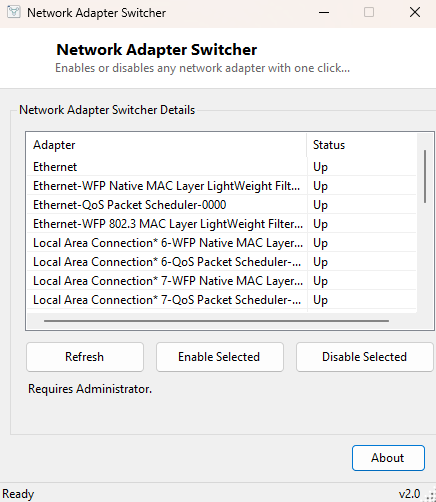
Enabling or disabling a network adapter is one of the most reliable first steps in network troubleshooting — it forces Windows to fully tear down and rebuild that adapter's connection state, clearing out stuck drivers, half-negotiated links and confused IP configurations that a simple reconnect often does not fix. The normal way to do this is digging into Control Panel's Network Connections applet, right-clicking the correct adapter among possibly several similarly-named entries, and choosing Disable, then repeating the process to re-enable it a few seconds later. Network Adapter Switcher turns that multi-click detour into a single button press from one flat list of every adapter on the system.
Key Features
- Lists every non-loopback network adapter with its live operational status
- One-click Enable and Disable for the selected adapter
- Refresh button to re-scan the adapter list after any change
- Status message confirms exactly which action was taken and on which adapter
- No configuration files or persistent settings — a pure point-and-click action tool
- Works identically for Wi-Fi, Ethernet, virtual and VPN-style adapters
Why You Might Need This Tool
A disable-then-re-enable cycle resolves a surprisingly large share of everyday connectivity problems: a Wi-Fi adapter that connected to a network but never actually got a working IP address, an Ethernet port that shows "connected" yet passes no traffic after a router reboot, or a VPN's virtual adapter that got left in a half-torn-down state after the VPN client crashed. It is also genuinely useful for people who deliberately keep a secondary adapter (a USB Ethernet dongle, a mobile hotspot's virtual adapter) disabled most of the time and only want it active for specific tasks, without digging through Control Panel every time.
How It Works
The adapter list is built with
Net.NetworkInformation.NetworkInterface.GetAllNetworkInterfaces(),
filtered to exclude the loopback interface, showing each adapter's friendly name
and current OperationalStatus. Enabling or disabling an adapter is not
something the managed .NET networking APIs expose directly — Windows deliberately
keeps that as an administrative operation — so the tool instead launches
netsh.exe interface set interface name="<adapter>"
                    admin=enable
(or admin=disable) through an elevated process,
which is the same command-line mechanism system administrators have used for this
exact purpose for years. Because this modifies system network configuration, the
process is started with the runas verb, triggering Windows' standard
UAC elevation prompt before the command actually executes. Once netsh completes,
the tool automatically re-scans and refreshes the adapter list so the new status
is visible immediately.
How to Use It
Select the adapter you want to control from the list, then click either Enable Selected or Disable Selected. Approve the UAC prompt when it appears. The status message and refreshed list confirm the change took effect within a second or two.
System Requirements & Notes
Enabling or disabling any adapter requires administrator rights, since it modifies system-level network configuration through netsh — simply viewing the adapter list does not. Disabling your only active internet-connected adapter will, obviously, disconnect you until you re-enable it, so double-check which entry is selected before clicking Disable if multiple adapters share similar names.
Frequently Asked Questions
Why does the adapter list sometimes show adapters I don't recognize?
VPN clients, virtualization software and some security tools install their own
virtual network adapters that appear alongside physical ones — these are normal and
can generally be left alone unless you specifically manage that software.
Does disabling an adapter delete its configuration?
No — IP settings, DNS servers and other configuration remain stored and are
restored automatically the moment the adapter is re-enabled.
Can I schedule this to run automatically?
Not from within the tool itself; it is built as a manual, deliberate action rather
than a background scheduler, in keeping with its single-purpose design.